
Installing Google Chrome On Windows 11: A Step-by-Step Guide


 4 min. read
  Updated on
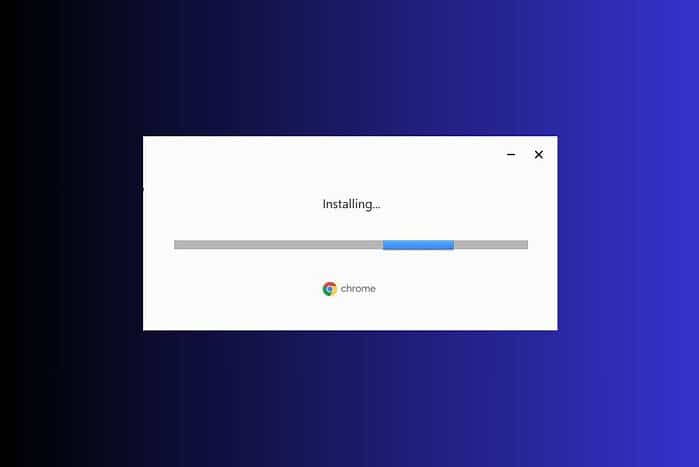
This guide provides a simple, step-by-step approach to getting Chrome up and running on your Windows 11 system. If you still need to upgrade your PC, follow this guide on how to upgrade to Windows 11.
No matter if you’re a long-time Chrome user or looking to switch from another browser, this guide will walk you through the entire installation process, from downloading the installer to configuring your initial settings.
How Do I Install Google Chrome on Windows 11?
Downloading the Chrome Installer
- Open Microsoft Edge: Since Chrome isn’t installed yet, you’ll need to use the default browser, Microsoft Edge, to download the installer.
- Navigate to the Chrome Download Page: In the address bar of Edge, type
google.com/chromeand press Enter. - Click the “Download Chrome” Button: You’ll see a large blue button prompting you to download Chrome. Click it.
- Accept the Terms of Service: A window may pop up asking you to accept Google’s Terms of Service. Review the terms and click “Accept and Install”.
- Save the Installer File: Your browser will prompt you to save the Chrome installer file. Choose a location (like your Downloads folder) and click “Save”.
Installing Chrome
- Locate the Installer File: Once the download is complete, navigate to the location where you saved the installer file (usually your Downloads folder).
- Run the Installer: Double-click the “ChromeSetup.exe” file to run the installer.
- Allow Changes to Your Device: Windows may ask for your permission to allow Chrome to make changes to your device. Click “Yes”.
- Wait for Installation: The installer will now download the necessary files and install Chrome on your system. This process may take a few minutes.
- Chrome Launches Automatically: Once the installation is complete, Chrome will automatically launch.
Configuring Chrome
- Sign In to Your Google Account (Optional): If you have a Google account, you can sign in to sync your bookmarks, history, passwords, and other settings across devices. To keep working when you’re offline, here’s how to turn on offline editing in Google Docs.
- Set Chrome as Your Default Browser (Recommended): A pop-up may appear asking if you want to set Chrome as your default browser. Click “Yes” to make Chrome your default browser.
- Customize Your Settings: Take some time to explore Chrome’s settings and customize them to your liking. You can change your homepage, search engine, and other preferences.
Tips
- Troubleshooting Download Issues: If you encounter problems downloading the installer, check your internet connection and ensure your firewall isn’t blocking the download.
- Running as Administrator: If the installation fails, try running the installer as an administrator. Right-click the “ChromeSetup.exe” file and select “Run as administrator.”
- Extension Management: Explore the Chrome Web Store for extensions to enhance your browsing experience. Be mindful of the permissions extensions request. If Outlook is part of your workflow, here’s how to update Microsoft Outlook.
Let’s see how Chrome stacks up against Edge in a few key areas:
| Feature | Google Chrome | Microsoft Edge |
|---|---|---|
| Extensions | Vast library of extensions in Chrome Web Store | Growing library, also supports Chrome extensions |
| Syncing | Seamless syncing across devices with Google account | Syncing with Microsoft account |
| Performance | Can be resource-intensive | Generally more lightweight and efficient |
| Privacy Features | Robust privacy settings and controls | Strong privacy features, tracking prevention |
Getting Started with Chrome on Windows 11
With Chrome installed, you’re ready to start browsing! Enjoy the enhanced features, customization options, and seamless integration with your Google account. If you run into account access issues elsewhere, use this guide to recover a locked Facebook account. If you also use an iPhone, here’s how to reset an iPhone without the Apple ID password.
FAQ
How much does it cost to install Google Chrome? Google Chrome is completely free to download and install.
Can I install Chrome on multiple Windows 11 computers? Yes, you can install Chrome on as many Windows 11 computers as you like.
Do I need a Google account to use Chrome? No, you don’t need a Google account to use Chrome, but signing in allows you to sync your data across devices.
What if I encounter an error during installation? Try restarting your computer and running the installer again. If the problem persists, visit the Chrome help center for troubleshooting tips.
How do I update Chrome after it’s installed? Chrome automatically updates in the background. You can also manually check for updates by clicking the three dots in the top-right corner, going to “Help,” and then “About Google Chrome.”


Read our disclosure page to find out how can you help MSPoweruser sustain the editorial team Read more



Improve this guide




User forum
0 messages