
How To Use HP Support Assistant To Update Drivers And Firmware (Quick Guide)


 3 min. read
  Updated on
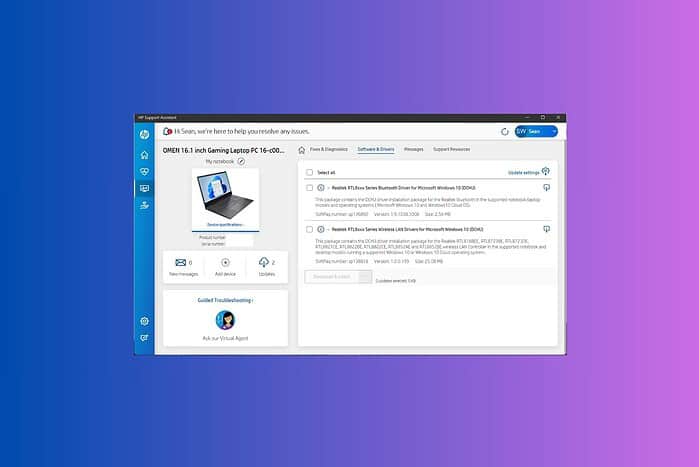
HP Support Assistant keeps your HP computer running smoothly by finding and installing the latest drivers and firmware. It’s a quick way to boost performance, fix common issues, and keep your system stable. This guide walks you through every step so you can update efficiently and avoid preventable problems. Once your BIOS and drivers are current, you can use the Windows 11 Installation Assistant for a clean upgrade.
Table of contents
How Can I Update My Drivers and Firmware Using HP Support Assistant?
This section shows you how to update drivers and firmware with HP Support Assistant. Back up important files before you start.
Step 1: Download and Install HP Support Assistant
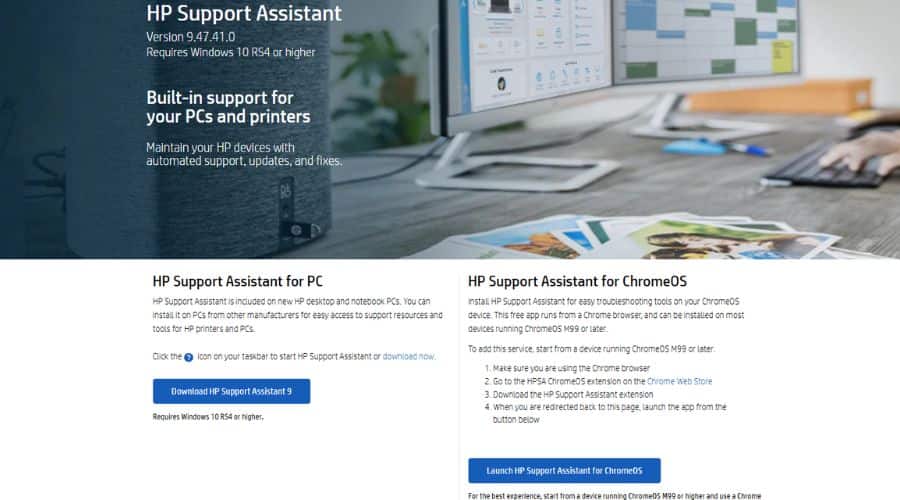
- If you don’t have HP Support Assistant, download it from HP’s support site and choose the version for your OS.

- Run the installer and follow the prompts to finish setup.
Use a different brand? Lenovo owners can follow this guide to update Lenovo drivers, software, firmware, and BIOS with the right tools for that platform.
Step 2: Launch HP Support Assistant
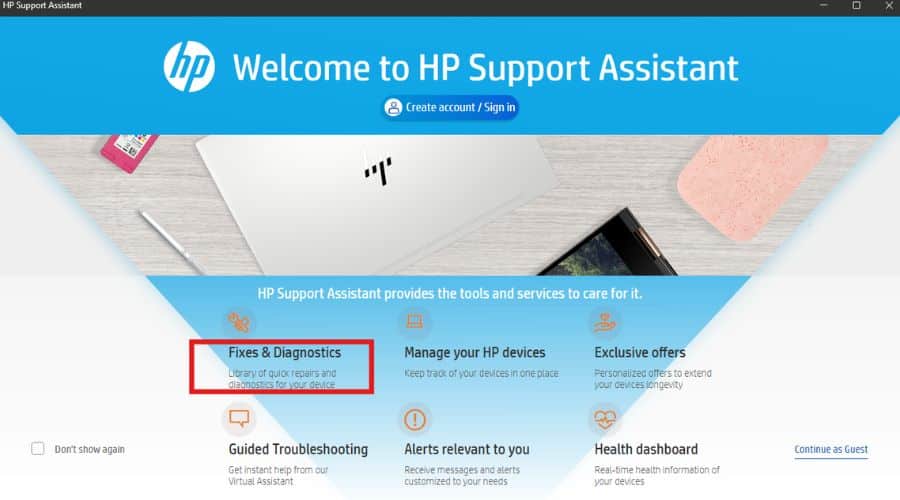
- Open HP Support Assistant from the Start menu or desktop shortcut.
- Let it scan your PC to identify hardware and software. The scan can take a few minutes.
Step 3: Check for Updates
- Review the list of available driver, firmware, and BIOS updates.
- Read each description so you understand the change and why your system needs it.
Step 4: Install Updates
- Select the updates you want to install. You can install all or pick specific items.
- Click Install. Your PC may restart during the process. Don’t interrupt it.
After audio updates, test your sound stack. If the Realtek app fails to open or reports a mismatch, use this fix for the “Realtek Audio Console doesn’t support for this machine” error to restore control panel access.
Step 5: Verify Updates
- Open Device Manager and confirm new driver versions.
- Open HP Support Assistant’s update history and verify successful installs.
If apps throw COM errors after updates, apply these steps to resolve “No such interface supported” in Windows before you roll back any drivers.
Tips for Using HP Support Assistant
- Check on a schedule: Run HP Support Assistant monthly or enable automatic checks.
- Read notes: Scan release notes so you understand risks, prerequisites, and reboots.
- Back up first: Create a restore point and copy critical files before BIOS or chipset updates.
- Reboot after updates: Restart to load new kernel drivers and services.
- Document your workflow: If you manage a team, generate a quick post-update checklist with Perchance AI so everyone validates audio, network, and peripherals the same way.
Keeping Your HP System Current
Use HP Support Assistant to maintain performance and security. Update drivers, firmware, and BIOS regularly, then verify results. This routine prevents avoidable crashes and keeps your PC stable for daily work and gaming.
FAQs
What is HP Support Assistant?
It’s HP’s maintenance app. It checks, downloads, and installs drivers, firmware, BIOS updates, and offers troubleshooting tools and support links.
How often should I check for updates?
Check at least monthly, or sooner if you see instability. You can enable automatic checks inside the app.
What happens if I skip updates?
You increase the risk of bugs, security issues, and compatibility problems. Regular updates close those gaps.
Can I uninstall HP Support Assistant afterward?
You can, but keeping it installed makes ongoing maintenance easier and uses minimal resources.


Read our disclosure page to find out how can you help MSPoweruser sustain the editorial team Read more



Improve this guide




User forum
0 messages