
How To Use Bing Image Creator To Create Cool AI Images (Quick Guide)


 5 min. read
  Updated on
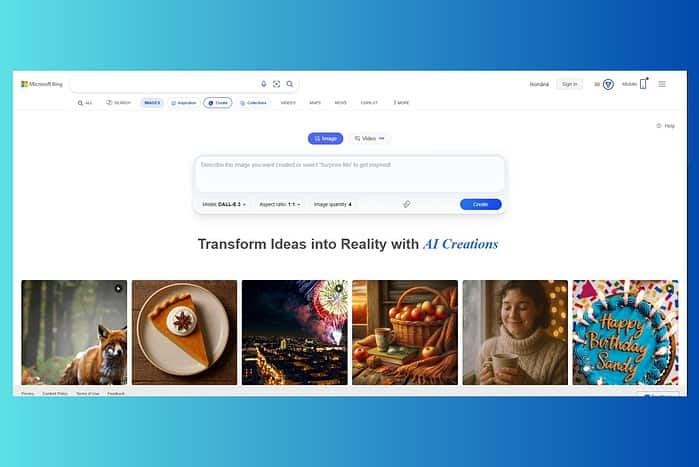
This guide will walk you through the process of using Bing Image Creator to generate impressive AI images. We’ll cover everything from initial setup to refining your prompts for optimal results.
Once you create artwork you love, you can even keep every detail intact by using Bing’s search tools to save full-resolution versions of images instead of compressed downloads.
How Can I Use Bing Image Creator to Generate Impressive AI Images?
Getting Started: Accessing Bing Image Creator
Navigate to Bing.com: Open your preferred web browser and go to Bing.com. You’ll need a Microsoft account to use Bing Image Creator. If you want to get even more out of Microsoft’s ecosystem while you are there, you can also follow this quick guide on downloading the latest Windows 10 ISO directly from Microsoft to refresh or repair your Windows installation
Find Image Creator: Look for the “Image Creator” button or link. Its location may vary slightly depending on your Bing interface, but it’s usually prominently featured.
Sign In (if necessary): If you’re not already signed in to your Microsoft account, you’ll be prompted to do so.
Crafting Your Prompt: The Key to Great AI Images
The quality of your AI-generated image hinges on the clarity and detail of your prompt. Think of it as giving instructions to an artist. The more specific you are, the better the results. Experiment with different keywords, adjectives, and stylistic descriptions. For example, instead of “a cat,” try “a fluffy Persian cat sitting on a windowsill, bathed in golden sunlight, photorealistic style.” If you need inspiration for landscapes or cityscapes, you can travel virtually with Microsoft Bing Travel to discover new locations and scenes to describe in your prompts.
Generating Your Image
Enter Your Prompt: In the designated text box, type your detailed image prompt.
Choose Your Style (Optional): Some versions of Bing Image Creator allow you to select an art style (e.g., photorealistic, painting, sketch). Experiment to see what works best for your vision.
Generate: Click the “Generate” button. Bing Image Creator will process your prompt and generate four different variations of your image.
Review and Select: Examine the generated images. You can choose to download your favorite image or regenerate more variations with a slightly modified prompt.
Refining Your Images: Iterative Creation
AI image generation is often an iterative process. Don’t be afraid to experiment! If the first generation doesn’t quite capture your vision, refine your prompt and try again. Adding more detail, changing keywords, or specifying a different art style can significantly impact the results.
Tips for Better Results
- Be Specific: Use precise language and descriptive adjectives.
- Experiment with Styles: Explore different art styles to find the perfect aesthetic.
- Iterate: Don’t be afraid to tweak your prompt and regenerate images until you achieve your desired outcome.
- Use Keywords Effectively: Research relevant keywords to enhance your prompt’s accuracy.
- Consider Composition: Think about the overall arrangement and elements within your image. You can also look at daily challenges and visuals on Microsoft’s search homepage by following this quick guide to playing and winning the Bing homepage quiz, which often highlights interesting topics and scenes you can turn into prompts.
Mastering Bing Image Creator: Unlocking Creative Potential
Bing Image Creator opens up a world of creative possibilities. By mastering the art of prompt engineering and iterative refinement, you can generate truly unique and captivating AI images. You can even borrow ideas from your desktop by saving Windows 10 lock screen Spotlight images for reference and inspiration. Don’t be afraid to experiment and let your imagination run wild!
FAQs
What is Bing Image Creator?
Bing Image Creator is a free tool that lets you create images from text descriptions using AI. It’s powered by DALL-E technology and integrated directly into the Bing search engine.
How accurate are the images generated by Bing Image Creator?
The accuracy of the generated images depends heavily on the clarity and detail of your prompt. More specific prompts generally lead to more accurate and relevant results. Experimentation is key to achieving the desired outcome.
Can I use the images generated by Bing Image Creator for commercial purposes?
The terms of service for Bing Image Creator should be consulted for specifics regarding commercial use. Generally, it is advisable to check the license associated with the generated images before using them in commercial contexts.
Is Bing Image Creator free to use?
Yes, Bing Image Creator is currently free to use for users with a Microsoft account. However, usage limits or future changes to pricing are always possible. Check the Bing Image Creator’s official website for the latest information.


Read our disclosure page to find out how can you help MSPoweruser sustain the editorial team Read more



Improve this guide




User forum
0 messages