
How To Update Lenovo Drivers, Software, Firmware, And BIOS (Quick Fix)


 4 min. read
  Updated on
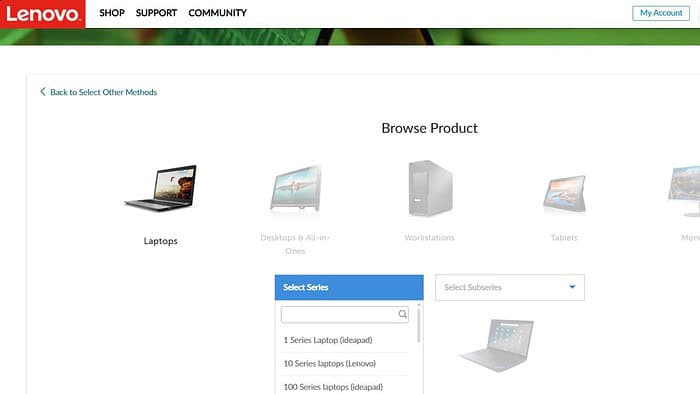
This article provides a comprehensive guide on updating Lenovo drivers, software, firmware, and BIOS. We’ll walk you through the process step-by-step, ensuring you have the latest versions for optimal performance and stability. From downloading the correct files to installing them successfully, we cover everything you need to know.
Updating Lenovo Components: A Step-by-Step Approach
Updating your Lenovo components is crucial for maintaining system performance and security. Here’s a breakdown of the process, covering different types of updates:
Downloading the Necessary Updates
Identify Your Lenovo Model: Visit the Lenovo support website and locate your specific computer model. This is critical for ensuring compatibility and downloading the correct files.
Visit the Lenovo Support Website: Navigate to the Lenovo support page for your specific model. This page will contain the most up-to-date information and download links.
Locate the Driver and BIOS Downloads: Look for the “Drivers & Downloads” section. This area will list all available drivers, software, firmware, and BIOS updates.
Download the Correct Files: Carefully review the list of available updates and ensure you’re downloading the correct files for your specific hardware components. Double-check the file names and versions to avoid errors.
Installing the Updates
Save the Downloaded Files: Save the downloaded files to a readily accessible location on your computer.
Run the Installation Files: Locate the installation file and run it. Follow the on-screen instructions to guide you through the installation process. Pay close attention to any prompts or warnings.
Restart Your Computer: After the installation is complete, restart your computer for the changes to take effect. This step is crucial for the updates to function correctly.
Updating Firmware
Find Firmware Updates: Look for firmware updates in the “Drivers & Downloads” section on the Lenovo support website.
Download and Install: Download the specific firmware update file for your device and install it according to the instructions.
Additionally, you can update drivers with the help of specialized software. In just a few moments, tools like Fortect can scan your computer and install all the right drivers.
Updating BIOS
Locate BIOS Updates: Look for BIOS updates in the “Drivers & Downloads” section on the Lenovo support website.
Download and Install: Download the specific BIOS update file for your device and install it according to the instructions. Caution: BIOS updates can significantly impact your system. Proceed with extreme caution and ensure you have a backup plan in case of issues.
Tips for Successful Updates
- Backup Important Data: Before performing any updates, back up any important data to prevent loss.
- Internet Connection: Ensure a stable internet connection during the download and installation processes.
- Read Instructions Carefully: Pay close attention to the instructions provided with each update to avoid errors.
- Check for Compatibility: Verify that the updates are compatible with your specific Lenovo model and hardware components.
- Use Original Lenovo Drivers: Lenovo recommends using the original Lenovo drivers, where available, to ensure compatibility and optimal performance.
Troubleshooting
If you encounter issues during the update process, consult the Lenovo support website for troubleshooting tips and FAQs.
Comparison Table: Lenovo Update Methods
| Update Type | Download Location | Installation Method | Potential Risks |
|---|---|---|---|
| Drivers | Lenovo Support Website | Installation File | Compatibility Issues |
| Software | Lenovo Support Website | Installation File | Conflicts with Existing Software |
| Firmware | Lenovo Support Website | Installation File | System Instability |
| BIOS | Lenovo Support Website | Installation File | Data Loss (if not handled correctly) |
This table provides a quick reference guide to the different update types, their locations, and potential risks.
Lenovo Update Summary
This guide has provided a comprehensive overview of updating Lenovo components. By following the steps outlined, you can ensure your Lenovo system runs smoothly and efficiently. Remember to always download the correct files and follow the instructions carefully.
FAQs
What should I do if I encounter errors during the update process?
Check the Lenovo support website for troubleshooting tips and FAQs specific to your issue.
How often should I update my Lenovo system?
Lenovo recommends checking for updates regularly, at least once a month, to ensure you have the latest versions of drivers, software, firmware, and BIOS.
Can I update my Lenovo system without an internet connection?
No, Lenovo updates typically require an internet connection to download the necessary files.
Related reading


Read our disclosure page to find out how can you help MSPoweruser sustain the editorial team Read more



Improve this guide




User forum
0 messages