
How To Turn Keyboard Lighting On Or Off On A Computer (Quick Guide)


 4 min. read
  Updated on

Keyboard backlighting is a convenient feature, enhancing visibility in low-light conditions. However, managing this lighting can sometimes be tricky, varying depending on your keyboard type and operating system. This guide provides clear steps to control your keyboard’s illumination, regardless of your setup. We’ll cover various methods and troubleshooting tips to help you quickly adjust your keyboard lighting.
How Do I Control My Keyboard’s Backlighting?
The method for controlling keyboard lighting differs significantly based on whether you’re using a laptop or a desktop keyboard. Let’s explore each scenario:
Turning Keyboard Lighting On/Off on a Laptop

Check for Function Keys: Most laptops utilize function keys (often marked with an F-key and a lightbulb icon) in conjunction with the
Fnkey to control backlighting. Press and hold theFnkey, then press the designated function key (e.g.,F5,F6,F10, or a key with a lightbulb symbol). Experiment with different F-keys if the initial attempt is unsuccessful.Use On-Screen Controls: Some laptops provide keyboard lighting controls within their system settings. Access your system settings (usually through the system tray or Start Menu), search for “Keyboard,” “Display,” or “Power Options,” and look for a keyboard backlight setting.
Manufacturer-Specific Software: Certain laptop manufacturers provide dedicated software to customize keyboard settings, including backlighting. Check your laptop manufacturer’s website for available software or drivers.
Turning Keyboard Lighting On/Off on a Desktop Keyboard
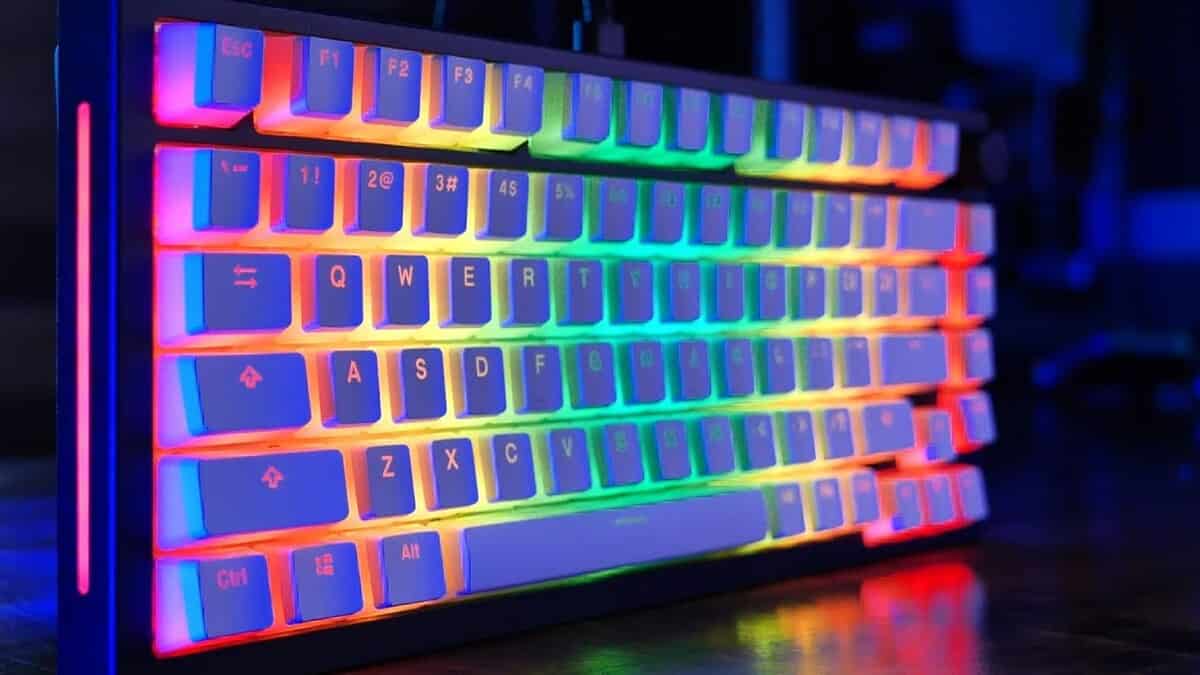
Dedicated Brightness Controls: Many gaming or specialized desktop keyboards include physical buttons or a dial specifically for adjusting backlight brightness. Locate these controls on your keyboard; they often feature lightbulb icons or brightness indicators.
Software Control: If your keyboard supports software customization, download and install the manufacturer’s software from their website. This software usually provides detailed control over lighting effects, brightness levels, and color profiles.
Check for Function Keys: Some desktop keyboards might use function keys (in combination with the
Fnkey, if applicable) to control lighting. Refer to your keyboard’s manual for specific key combinations.
Tips for Managing Keyboard Backlighting
- Brightness Levels: Adjust the brightness to suit your environment. Excessive brightness can be distracting, while insufficient brightness defeats the purpose.
- Power Saving: If your keyboard has adjustable brightness, set it to the lowest level when not needed to conserve battery life (for laptops) or reduce power consumption.
- Custom Profiles: Many keyboards allow you to create custom lighting profiles for different applications or scenarios. This can be helpful for gaming or other tasks where specific lighting effects are desired.
- Troubleshooting: If you’re having difficulty controlling your keyboard’s backlighting, check your keyboard’s manual, visit the manufacturer’s support website, or search online for troubleshooting guides specific to your keyboard model.
Keyboard Backlight Comparison: Laptops vs. Desktops
| Feature | Laptop Keyboard Backlight | Desktop Keyboard Backlight |
|---|---|---|
| Control Methods | Function keys, system settings, manufacturer software | Dedicated buttons, software, function keys |
| Brightness Levels | Usually limited levels | Often offers more granular control |
| Customization | Often less extensive | Can offer extensive customization (RGB, etc.) |
| Power Source | Battery-powered | Usually USB-powered |
This table highlights the key differences between laptop and desktop keyboard backlighting, helping you understand the control options available to you.
Wrapping Up Keyboard Lighting Control
Successfully controlling your keyboard’s backlighting involves understanding your specific keyboard and its control methods. Whether you’re using a laptop or desktop keyboard, this guide provides the necessary steps and troubleshooting tips to ensure optimal lighting for your needs. Remember to consult your keyboard’s manual or the manufacturer’s website for specific instructions and support.
FAQs
How do I turn off the keyboard backlight on my HP laptop?
The method varies depending on your HP laptop model. Look for function keys (often with a lightbulb icon) and press them in conjunction with the Fn key. Alternatively, check your HP laptop’s system settings for keyboard backlight controls.
Why is my keyboard backlight not working?
Several reasons can cause keyboard backlight malfunction. Check if the backlight is enabled in the system settings, ensure the keyboard is properly connected (for desktop keyboards), and try different function key combinations. If the problem persists, check your keyboard’s manual or contact the manufacturer for support.
How do I change the color of my keyboard backlight?
This feature is primarily available on gaming or specialized keyboards. Consult your keyboard’s manual or the manufacturer’s software to find out how to change the color of your keyboard backlight. Many keyboards allow for extensive customization, including RGB color profiles.
Can I adjust the brightness of my keyboard backlight?
Yes, most keyboards allow for brightness adjustment. This is typically done through function keys, dedicated brightness controls on the keyboard itself, or through manufacturer-specific software.
Related reading
- Samsung TV Audio Description Won’t Turn Off – Quick Guide
- How To Log Off Your Computer Or Sign Out Of Windows 11/10 (Quick Guide)
- How To Turn Off FPS Counter in Windows 11? 3 Quick Methods
- Why Does My Cellular Data Keep Turning Off? 10 Easy Fixes
- Second Monitor Turns Off and On Repeatedly in Windows 11: Fixed


Read our disclosure page to find out how can you help MSPoweruser sustain the editorial team Read more



Improve this guide




User forum
0 messages