
How To Take Screenshot On Windows 11: A Step-by-Step Guide


 5 min. read
  Updated on
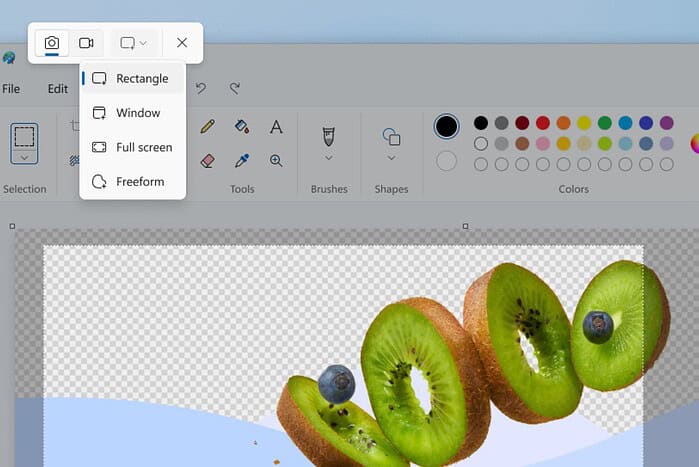
From simple keyboard shortcuts to more advanced features within the Snipping Tool, you’ll find below the best way to take a screenshot on Windows 11 for your specific needs. We’ll cover everything from capturing the entire screen to selecting a specific window or region, editing your screenshots, and saving them in your desired format. If you’re using an HP notebook, you can follow this dedicated walkthrough: how to take a screenshot on a Windows 11 HP laptop.
What Are The Ways To Take Screenshots On Windows 11?
Using the Print Screen (PrtScn) Key
The Print Screen key is the simplest and most direct way to capture your entire screen. For a laptop-focused tutorial, see this step-by-step guide: how to take a screenshot on a Windows 11 laptop.
- Press the PrtScn key on your keyboard.
- Open an image editing program like Paint, Paint 3D, or Photoshop.
- Paste the screenshot into the program (usually by pressing Ctrl + V).
- Edit the screenshot as needed (crop, annotate, etc.).
- Save the image in your desired format (JPG, PNG, etc.).
Using Windows Key + Shift + S (Snipping Tool)
The Windows Key + Shift + S shortcut activates the Snipping Tool, offering more flexibility in capturing specific areas of your screen. HP users can also reference this focused walkthrough: Windows 11 HP laptop screenshot guide.
- Press Windows Key + Shift + S simultaneously. The screen will dim, and a small toolbar will appear at the top.
- Choose your snipping mode:
- Rectangular Snip: Drag your cursor to select a rectangular area.
- Freeform Snip: Draw a freeform shape around the area you want to capture.
- Window Snip: Click on a specific window to capture it.
- Full-screen Snip: Captures the entire screen.
- The screenshot will be copied to your clipboard.
- Click the notification that appears in the bottom right corner of your screen to open the Snipping Tool for editing and saving.
- Edit the screenshot as needed (crop, annotate, etc.).
- Save the image in your desired format (JPG, PNG, etc.).
Using the Windows Key + Print Screen (PrtScn) Key
This shortcut automatically captures your entire screen and saves it as a file. Prefer a shorter walkthrough? Try this condensed tutorial: Windows 11 HP laptop screenshot: easy steps.
- Press the Windows Key + PrtScn keys simultaneously. The screen will briefly dim, indicating a screenshot has been taken.
- The screenshot will be saved automatically in the Pictures > Screenshots folder.
- Navigate to the Pictures > Screenshots folder to find your screenshot.
Using Alt + Print Screen (PrtScn) Key
This shortcut captures only the active window.
- Make sure the window you want to capture is active (selected).
- Press Alt + PrtScn simultaneously.
- Open an image editing program like Paint, Paint 3D, or Photoshop.
- Paste the screenshot into the program (usually by pressing Ctrl + V).
- Edit the screenshot as needed (crop, annotate, etc.).
- Save the image in your desired format (JPG, PNG, etc.).
Using the Game Bar
The Game Bar is designed for capturing gameplay, but it can also be used to take screenshots of any application. If you’re on an HP system and prefer a vendor-specific walkthrough, see: Windows 11 HP laptop screenshot (step-by-step). And if you use voice assistants on your PC, here’s how to change the Alexa voice to match your preferences while you work.
- Press Windows Key + G to open the Game Bar.
- If prompted, check the “Yes, this is a game” box, even if it’s not a game.
- Click the Screenshot icon (camera icon) on the Game Bar.
- The screenshot will be saved in the Videos > Captures folder.
Tips for Better Screenshots
- Use Annotations: The Snipping Tool allows you to annotate screenshots with pens, highlighters, and erasers, making it easy to draw attention to specific areas.
- Customize Snipping Tool: Explore the Snipping Tool settings to customize the delay before taking a snip, the border color, and more.
- Consider Third-Party Tools: For more advanced features like scrolling screenshots or automatic uploads, consider using third-party screenshot tools like Lightshot or Greenshot.
- Optimize Image Size: Before sharing screenshots online, consider optimizing the image size to reduce file size and improve loading times.
Screenshot Methods Compared
| Method | Description | Capture Area | Automatic Save | Editing Tools |
|---|---|---|---|---|
| Print Screen (PrtScn) | Captures the entire screen. | Full Screen | No | Requires Paint |
| Windows Key + Shift + S (Snipping Tool) | Captures a selected area. | Selected Area | No | Built-in |
| Windows Key + PrtScn | Captures the entire screen and saves it as a file. | Full Screen | Yes | None |
| Alt + PrtScn | Captures the active window. | Active Window | No | Requires Paint |
| Game Bar | Captures the screen via the Game Bar. | Full Screen/Window | Yes | Limited |
Mastering Windows 11 Screenshots
Windows 11 offers a range of options for capturing your screen, from simple keyboard shortcuts to more advanced tools. By understanding the different methods and their features, you can easily capture and share visual information.
FAQ
How do I find my screenshots in Windows 11?
Screenshots taken with the Windows Key + PrtScn shortcut are saved in the Pictures > Screenshots folder. Screenshots taken with the Game Bar are saved in the Videos > Captures folder.
How do I take a screenshot of only one window in Windows 11?
Use the Alt + PrtScn shortcut to capture only the active window.
How do I edit a screenshot in Windows 11?
You can use the Snipping Tool, Paint, Paint 3D, or other image editing software to edit your screenshots.
How do I take a scrolling screenshot in Windows 11?
Windows 11 doesn’t have a built-in scrolling screenshot feature. You’ll need to use a third-party tool like Lightshot or Greenshot.
How do I copy a screenshot to my clipboard in Windows 11?
Use the Print Screen (PrtScn) key or the Windows Key + Shift + S shortcut. The screenshot will be copied to your clipboard, allowing you to paste it into an image editor or other application.


Read our disclosure page to find out how can you help MSPoweruser sustain the editorial team Read more



Improve this guide




User forum
0 messages