
How To Pin To Taskbar In Windows 11: A Step-by-Step Guide


 4 min. read
  Updated on
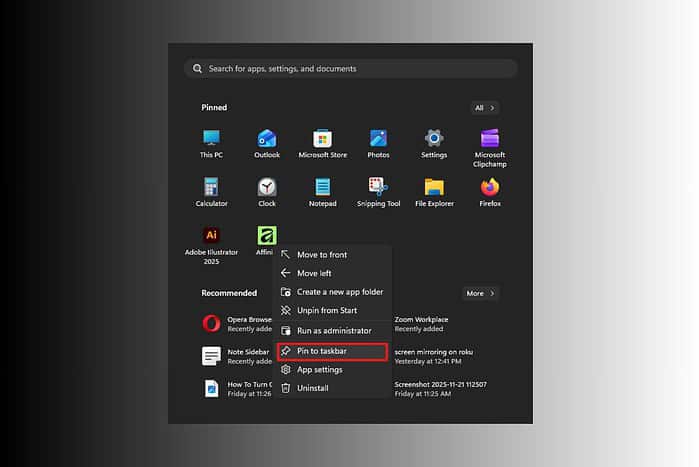
This guide will walk you through the process of pinning applications, files, folders, and even websites to your Windows 11 taskbar.
Let’s learn how to personalize your Windows 11 experience by pinning your essential items to the taskbar.
Want to Pin Apps and Files to the Taskbar in Windows 11?
Pinning Applications to the Taskbar
Pinning applications to the taskbar is the most common use case. Here’s how to do it:
- Locate the Application: Find the application you want to pin. You can find it in the Start menu, on your desktop, or in File Explorer.
- Right-Click the Application: Right-click on the application’s icon.
- Select “Pin to Taskbar”: In the context menu that appears, select the “Pin to taskbar” option. The application icon will now appear on your taskbar.
- Unpinning an Application: To remove an application, right-click its icon on the taskbar and select “Unpin from taskbar.”
Pinning Files to the Taskbar
While you can’t directly pin a file to the taskbar, you can pin the application that opens the file, and then access the file quickly through the application’s jump list.
- Locate the File: Find the file you want to access quickly.
- Determine the Application: Identify the application that opens the file (e.g., Microsoft Word for a .docx file).
- Pin the Application: Pin the application to the taskbar using the steps outlined in the “Pinning Applications to the Taskbar” section above.
- Access the File via Jump List: Right-click the application’s icon on the taskbar. A jump list will appear, showing recently opened and pinned files. If your file is not there, open the file once, and it will appear in the recently opened section.
Pinning Folders to the Taskbar (Workaround)
Windows 11 doesn’t directly support pinning folders to the taskbar, but there’s a workaround using shortcuts:
- Create a Shortcut: Right-click on an empty space on your desktop and select “New” > “Shortcut.”
- Enter the Folder Path: In the “Type the location of the item” field, enter the full path to the folder you want to pin (e.g.,
C:\Users\YourName\Documents\MyFolder). - Name the Shortcut: Give the shortcut a descriptive name (e.g., “MyFolder Shortcut”).
- Pin the Shortcut: Right-click the newly created shortcut on your desktop and select “Pin to taskbar.”
Pinning Websites to the Taskbar
You can pin websites to the taskbar using Microsoft Edge:
- Open the Website in Edge: Open the website you want to pin in the Microsoft Edge browser.
- Access the Settings Menu: Click the three dots (ellipsis) in the top-right corner of the Edge window.
- Select “Pin to Taskbar”: Navigate to “More tools” and select “Pin to taskbar.”
- Confirm the Pin: Click “Pin” if prompted.
Tips for Managing Your Taskbar
- Rearrange Icons: Click and drag icons on the taskbar to rearrange them in your preferred order.
- Combine Taskbar Buttons: Right-click on the taskbar, select “Taskbar settings,” and choose “Combine taskbar buttons and hide labels” to keep your taskbar tidy.
- Multiple Monitors: If you use multiple monitors, you can choose to show the taskbar on all displays or only on the main display. If you prefer casting your display instead, you can follow a Windows 11 casting guide to mirror content wirelessly.
Quick Access to Your Essentials
Pinning items to the taskbar is a great way to keep your most used applications and files within reach. By following the steps outlined above, you can customize your Windows 11 taskbar to perfectly suit your needs and streamline your workflow. When working across different displays, another helpful approach is understanding how to cast your laptop to a TV if you need a larger workspace.
FAQ
How do I unpin an app from the taskbar? Right-click on the app’s icon on the taskbar and select “Unpin from taskbar.”
Can I pin a file directly to the taskbar? No, but you can pin the application that opens the file and then access the file through the application’s jump list.
Is there a way to pin folders to the taskbar? Yes, you can create a shortcut to the folder on your desktop and then pin the shortcut to the taskbar.
Why can’t I pin some programs to the taskbar? Some older programs may not support pinning directly. In these cases, try creating a shortcut instead. If your workflow involves audio tools or broadcasting software, you might also explore more specialized solutions like radio automation software for Windows.
How do I change the icon of a pinned item? Right-click on the item’s shortcut, select “Properties,” go to the “Shortcut” tab, and click “Change Icon.”


Read our disclosure page to find out how can you help MSPoweruser sustain the editorial team Read more



Improve this guide




User forum
0 messages