
How To Make Columns In Microsoft Word: A Step-by-Step Guide


 5 min. read
  Updated on
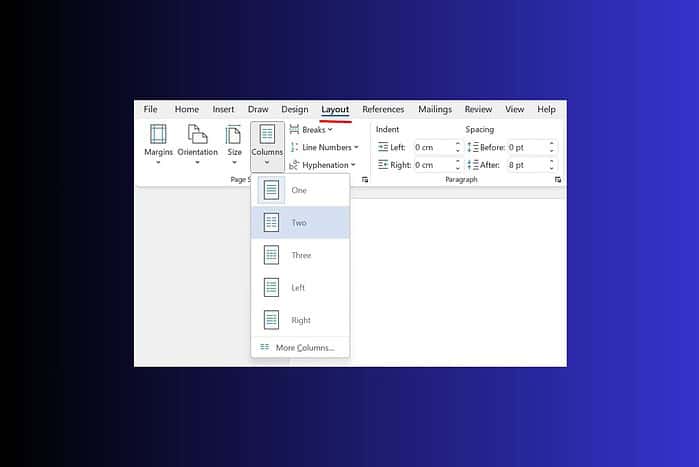
Word offers several ways to create columns, from simple preset options to more customized layouts. This step-by-step guide will cover the most common methods, ensuring you can effectively use columns to improve the look and feel of your Word documents.
Follow along to learn how to effortlessly format your text into columns and elevate your document design. If you’re also preparing your system for new formatting tools, you may find it useful to review a complete guide on upgrading from Windows 10 to Windows 11.
Table of contents
How Do I Create Columns in Microsoft Word?
Using Preset Column Options
Word provides a quick and easy way to create columns using its built-in preset options. This is ideal for simple column layouts. If you’re working on content across devices, you might also find this iPhone 13 unlocking guide helpful for accessing files stored on your phone.
- Select the Text: Highlight the portion of your document you want to format into columns. If you want to format the entire document, press
Ctrl + A(Windows) orCommand + A(Mac) to select all. - Go to the Layout Tab: Click on the “Layout” tab in the Word ribbon.
- Click Columns: In the “Page Setup” group, find and click the “Columns” button.
- Choose a Preset: A dropdown menu will appear with preset column options, such as “Two,” “Three,” “Left,” and “Right.” Select the desired number of columns. Your selected text will automatically format into the chosen column layout.
Creating Custom Columns
For more control over your column layout, you can create custom columns. This allows you to specify the number of columns and their width. When you format documents for digital distribution, pairing them with modern payment tools such as those described in this Apple Pay on iPhone 14 tutorial can streamline workflows involving mobile clients.
- Select the Text: Highlight the portion of your document you want to format into columns.
- Go to the Layout Tab: Click on the “Layout” tab in the Word ribbon.
- Click Columns: In the “Page Setup” group, find and click the “Columns” button.
- Select “More Columns”: At the bottom of the dropdown menu, click “More Columns…” This will open the “Columns” dialog box.
- Specify the Number of Columns: In the “Number of Columns” field, enter the desired number of columns.
- Adjust Width and Spacing (Optional): You can customize the width and spacing between columns by adjusting the values in the “Width and Spacing” section. Uncheck “Equal column width” to set individual widths.
- Apply to: Ensure you select the correct section or “Whole document” from the “Apply to” dropdown menu.
- Click OK: Click the “OK” button to apply the custom column settings to your document.
Using Section Breaks for Different Column Layouts
Section breaks allow you to have different column layouts on the same page or in varied parts of your document. When organizing content across platforms, you may need device-specific information such as how to find the SIM number on Android if you manage documents for mobile users.
- Insert Section Breaks: Place your cursor where you want the column layout to change. Go to the “Layout” tab, click “Breaks,” and choose the appropriate section break type (e.g., “Continuous” for columns on the same page, “Next Page” for columns on a new page).
- Format Each Section: After inserting the section breaks, format each section with the desired column layout using either the preset or custom column options described above.
- Repeat as Needed: Repeat the process to create different column layouts in various sections of your document.
Removing Columns
If you need to remove columns and revert to a single-column layout, follow these steps. For users who also create content in the cloud, referencing this guide on indenting in Google Docs can help maintain consistent formatting across platforms.
- Select the Text: Highlight the text that is currently formatted in columns.
- Go to the Layout Tab: Click on the “Layout” tab in the Word ribbon.
- Click Columns: In the “Page Setup” group, find and click the “Columns” button.
- Choose “One”: Select the “One” option from the dropdown menu to remove the column formatting and return to a single-column layout.
Tips For Working With Columns
- Keep it Simple: Avoid using too many columns, as this can make your document difficult to read. Two or three columns are usually sufficient.
- Balance Text: Ensure that the text is evenly distributed across the columns. You can use manual breaks to adjust the flow if needed.
- Use Section Breaks: Section breaks are crucial for creating documents with varying column layouts.
- Preview Your Work: Always preview your document to ensure that the columns look as intended.
Document Layout Enhancements
Mastering columns in Word can significantly improve the visual structure and readability of your documents. Experiment with different column settings to find the perfect layout for your specific needs.
FAQ
How do I make two columns in Word? Select the text you want to format, go to the Layout tab, click Columns, and choose “Two.”
How do I make three columns in Word? Select the text you want to format, go to the Layout tab, click Columns, and choose “Three.”
How do I adjust the width of columns in Word? Go to Layout > Columns > More Columns. Uncheck “Equal column width” and adjust the width for each column.
How do I remove columns in Word? Select the text formatted in columns, go to the Layout tab, click Columns, and choose “One.”
Can I have different column layouts on the same page in Word? Yes, you can use section breaks to create different column layouts on the same page.


Read our disclosure page to find out how can you help MSPoweruser sustain the editorial team Read more



Improve this guide




User forum
0 messages