
How To Enable IE Mode In Edge On Windows 11: A Step-by-Step Guide


 4 min. read
  Updated on
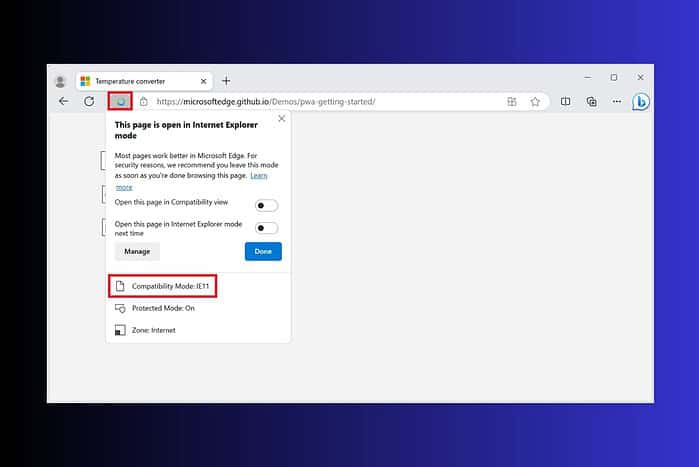
Enabling IE mode allows you to view these sites directly within Edge, eliminating the need to switch to a separate browser. If you’re also pruning old online profiles while modernizing your setup, here’s a step-by-step guide on how to permanently delete your Amazon account.
This guide provides a comprehensive, step-by-step approach to enabling IE mode in Edge on Windows 11, ensuring you can access those older websites without compatibility issues. We’ll walk you through the necessary settings and configurations to get IE mode up and running smoothly. Managing a mixed device fleet too? If you need to refresh Apple firmware from your PC, see how to update an iPhone from a computer.
How Do I Turn On IE Mode in Edge?
Prerequisites
Before you begin, ensure you have the following:
- A computer running Windows 11.
- Microsoft Edge browser installed.
- Administrator privileges on your computer (required for some settings). When you document prerequisites for colleagues, you can quickly capture paperwork with your phone—here’s how to scan a document with an iPhone.
Step 1: Access Edge Settings
- Open the Microsoft Edge browser.
- Click on the three dots (ellipsis) in the top-right corner of the browser window.
- Select “Settings” from the dropdown menu.
Step 2: Navigate to Default Browser Settings
- In the left-hand menu within the Settings page, click on “Default browser.”
Step 3: Enable “Allow sites to be reloaded in Internet Explorer mode”
- Locate the “Internet Explorer mode (IE mode) compatibility” section.
- Find the option labeled “Allow sites to be reloaded in Internet Explorer mode.”
- Click the dropdown menu and select “Allow”.
- Click the “Restart” button that appears. This restarts Edge and applies the setting.
Step 4: Reload a Site in IE Mode
- Navigate to the website you want to view in IE mode.
- Click on the three dots (ellipsis) in the top-right corner of the browser window.
- Select “Reload in Internet Explorer mode.”
Step 5: (Optional) Configure IE Mode Pages
- Navigate to
edge://settings/defaultBrowserin the Edge address bar. - Locate the “Internet Explorer mode (IE mode) pages” section.
- Click the “Add” button.
- Enter the URL of the website you want to automatically open in IE mode.
- Click “Add” to save the site to the list.
Step 6: Test and Verify
- Visit the website you configured for IE mode.
- Verify that the site loads correctly and displays as expected.
- Look for the IE icon in the address bar, indicating that the site is running in IE mode.
Tips
- If a site doesn’t load correctly in IE mode, try clearing your browser cache and cookies. If you’re testing on an iPad as well, you can improve performance by clearing caches on iPad.
- For enterprise environments, Group Policy settings can be used to manage IE mode configuration centrally.
- Keep Microsoft Edge updated to ensure you have the latest compatibility features and security updates. When MFA prompts arrive on your phone and you miss alerts, double-check your ringer—here’s how to turn off Silent mode on iPhone.
Understanding IE Mode Functionality
Enabling IE mode in Edge allows you to access older websites that may not be compatible with modern browser standards. This feature is particularly useful for businesses and organizations that rely on legacy web applications.
FAQ
How long will IE mode be available in Edge? Microsoft has committed to supporting IE mode in Edge through at least 2029.
Why am I not seeing the “Reload in Internet Explorer mode” option? Ensure that you have enabled “Allow sites to be reloaded in Internet Explorer mode” in the Edge settings and restarted the browser.
Can I use IE mode for all websites? While you can, it’s generally recommended to only use IE mode for websites that specifically require it due to compatibility issues.
How do I disable IE mode in Edge? Go to Edge settings, navigate to “Default browser,” and set “Allow sites to be reloaded in Internet Explorer mode” to “Don’t allow.”
Is IE mode as secure as regular browsing in Edge? IE mode relies on the Internet Explorer 11 engine, which may have known vulnerabilities. It’s crucial to keep your system and browser updated to mitigate potential security risks.
Comparison: IE Mode vs. Native IE11
| Feature | IE Mode in Edge | Native Internet Explorer 11 |
|---|---|---|
| Browser | Microsoft Edge | Internet Explorer 11 |
| Compatibility | Modern web standards and legacy sites | Primarily legacy sites |
| Security Updates | Receives Edge security updates | Receives limited security updates |
| Performance | Generally better performance and stability | Can be slower and less stable |
| Support | Supported by Microsoft through at least 2029 | Support ended for most versions of Windows 10 |
Accessing Legacy Content on Edge
By following these steps, you can successfully enable IE mode in Edge on Windows 11, ensuring seamless access to websites requiring older browser technologies. This allows you to maintain productivity and access critical information without the need for a separate browser.


Read our disclosure page to find out how can you help MSPoweruser sustain the editorial team Read more



Improve this guide




User forum
0 messages