
How To Download, Install, And Update Intel Drivers (Easy Guide)


 3 min. read
  Updated on
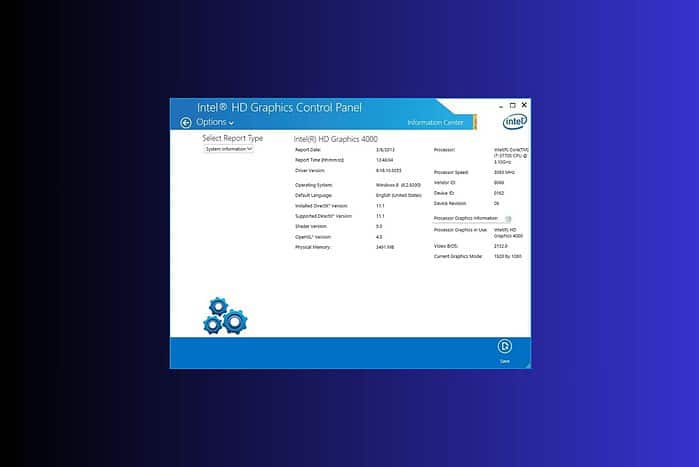
Intel processors power many modern PCs, and keeping their drivers updated ensures top performance and stability.
This guide shows you how to download, install, and update your Intel drivers with the Intel Driver & Support Assistant (IDSA). You’ll also learn quick fixes for common driver issues and how to manually install drivers in Windows 11 if you prefer not to use Intel’s tool.
Table of contents
How Do I Keep My Intel Drivers Up-to-Date?
Downloading and Installing the Intel Driver & Support Assistant
- Visit the Intel Download Center: Open your browser and go to the official Intel Download Center. Searching “Intel Download Center” on Google will take you there quickly.
- Download the Intel Driver & Support Assistant: Find and download the Intel Driver & Support Assistant (IDSA) installer for your operating system.
- Run the Installer: Double-click the downloaded file and follow the on-screen prompts to complete installation.
- Launch the Assistant: Open the app and let it scan your system to detect all Intel hardware and available driver updates.
If your audio components fail to appear in the scan or sound stops working afterward, reinstall the sound stack. Follow this guide on downloading and reinstalling Realtek HD Audio Manager to restore playback controls and drivers.
Updating Your Intel Drivers
Review the Scan Results: After the scan, check the list of driver updates. Note which components each one targets—graphics, chipset, or network.
Select Drivers to Update: Choose the ones you need. Updating all drivers is safest, but you can focus on specific ones if necessary.
Start the Update Process: Click Update to begin. The tool downloads and installs all chosen drivers automatically.
Restart Your Computer: Reboot once installation completes to apply all updates properly.
Users with Dell laptops can alternatively update Dell drivers using Dell Update Utility for OEM-tuned releases if Intel’s versions conflict with factory firmware.
Tips for Successful Driver Updates
- Use a stable connection: Keep your internet steady to avoid corrupted downloads.
- Check storage space: Ensure you have enough free disk space before installing large graphics or chipset updates.
- Back up important files: Backup isn’t mandatory but always smart before major updates.
- Update touchpad drivers: If you use a laptop, make sure your trackpad runs properly after updating. See how to download and install Synaptics Touchpad drivers on Windows 11 if the pad stops responding.
- Schedule checks: Run Intel Driver & Support Assistant every few months or enable auto-scan for new versions.
Keeping Your System Optimized
Keeping your Intel drivers updated improves speed, compatibility, and reliability. After updates, test core apps and verify CPU utilization and temperature stability. To make daily work easier, consider expanding your toolkit—learn how to download and install a free Office suite on Windows 11 to pair productivity software with an up-to-date, efficient system.
FAQs
What happens if I don’t update my Intel drivers?
Outdated drivers cause system lag, crashes, or hardware incompatibilities. They may also expose your system to security flaws fixed in later updates.
How often should I update my Intel drivers?
Check every few months or enable automatic notifications through the Intel Driver & Support Assistant.
Can I update individual drivers?
Yes, you can install one or all. The tool lets you pick only the drivers you need.
What if I encounter problems?
Restart your system and rerun the Assistant. If issues persist, visit Intel’s support site for troubleshooting help or contact Intel Support directly.


Read our disclosure page to find out how can you help MSPoweruser sustain the editorial team Read more



Improve this guide




User forum
0 messages