
How to Design a Professional Logo Using Design.com’s AI Logo Generator


 4 min. read
  Published on
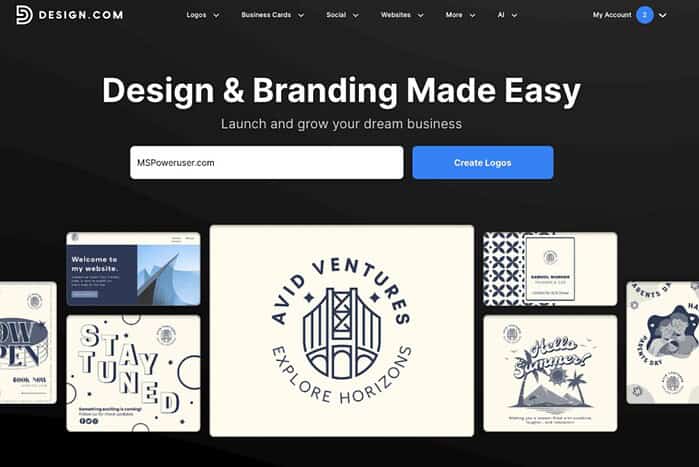
A good logo sets the tone for your entire brand, but creating one from scratch can be difficult if you’re not a designer. Design.com’s AI Logo Generator simplifies the process by generating usable logo concepts in seconds and giving you tools to refine them without professional software.
Whether you’re launching a business, rebranding a project, or simply need a clean identity for a personal venture, this step-by-step guide will show you exactly how to create a polished, professional-looking logo using Design.com.
1. Go to Design.com and Start the Logo Creation Process
- Open the AI logo generator in your browser.
- Enter your business or project name when prompted, then press the Generate button.
- Refine the results given by enhancing the Description and Keywords fields, and press Generate once more for a more refined result.
These inputs help guide the AI so the generated concepts match the tone and purpose of your brand.
Design.com quickly generates a very large set of logo ideas based on your inputs. Instead of a handful of suggestions, you’ll see thousands of variations. What matters isn’t the number — it’s the range.
Each concept includes a combination of typography, icon style, color usage, and layout. Spend a moment scrolling through them to get a feel for what direction resonates with you.
2. Use Filters to Refine the Logo Results

With so many concepts available, filters become extremely helpful. You can filter the ideas by style categories, such as:
- Abstract
- Mascot (I personally find this very useful)
- Emblem
- Corporate
- Wordmark
- Vintage
- Classic
If you already have a design direction in mind, applying one of these filters will quickly eliminate irrelevant styles.
3. Select a Logo to Customize Further
Once you find a concept that looks close to your needs:
- Click the design to open it in the customization interface. Review it and then select the brand colors.
- Edit the text fields on your logo and refine it further. At this step, you can choose the slogan you want to add or use the AI Slogan generation feature.
- The next step allows you to change the layout, by switching the positions of the generated icon and text around.
- Confirm that you wish to proceed with the current selection and click on Download Now.
4. Use the Advanced Editor for More Control (Optional)

If you want to refine details more precisely, switch to the Advanced Editor.
Here you can:
- Adjust element spacing
- Resize icons and text separately
- Swap icons entirely
- Change shapes or add accents
- Tweak color shades
- Test multiple variations side by side
It’s not a professional design tool, but it offers enough control for fine-tuning without being overwhelming.
5. Preview Your Logo Across Branding Assets

Before downloading, it’s useful to see how your logo performs in different contexts.
Design.com automatically generates previews on:
- Business cards
- Social media posts
- Letterheads
- Website mockups
Seeing your design in real use cases helps you evaluate whether the spacing, colors, or icon choice hold up outside the editor.
6. Downloading the Logo (Free or Paid Options)

To export your logo, you’ll need to choose a plan.
Free Option
Design.com allows free downloads for some logo types, websites and digital business cards. Although there are some limitations on the free products you can use, they still come at the same quality as the premium products.
Paid Plans
Paid plans unlock:
- High-resolution PNGs and JPGs
- SVG vector files
- EPS print files
- Unlimited edits
- Access to branded templates
- Business cards, email signatures, social templates
- Website builder (on some plans)
- Digital business card tools (Premium plan)
You can cancel anytime, and your logo remains yours permanently.
7. Apply Your Logo to Branding Materials
Once exported, you can use the same Design.com account to generate other matching assets:
- Business cards
- Instagram and Facebook posts
- Email signatures
- Letterheads
- Over 579,000 design templates
This helps keep your brand consistent without manually recreating styles.
Final Thoughts
Design.com’s AI Logo Generator offers a straightforward way for non-designers to create a polished, usable logo. The process is quick, the filtering options make it easier to navigate the large pool of concepts, and the built-in editor provides enough customization to make the final result feel intentional.
Combined with the broader branding tools, it’s a practical solution for anyone who needs a complete brand setup without hiring a designer.


Read our disclosure page to find out how can you help MSPoweruser sustain the editorial team Read more



Improve this guide



User forum
0 messages