
How to check if someone's logged into your PC on Windows 10


 2 min. read
  Updated on
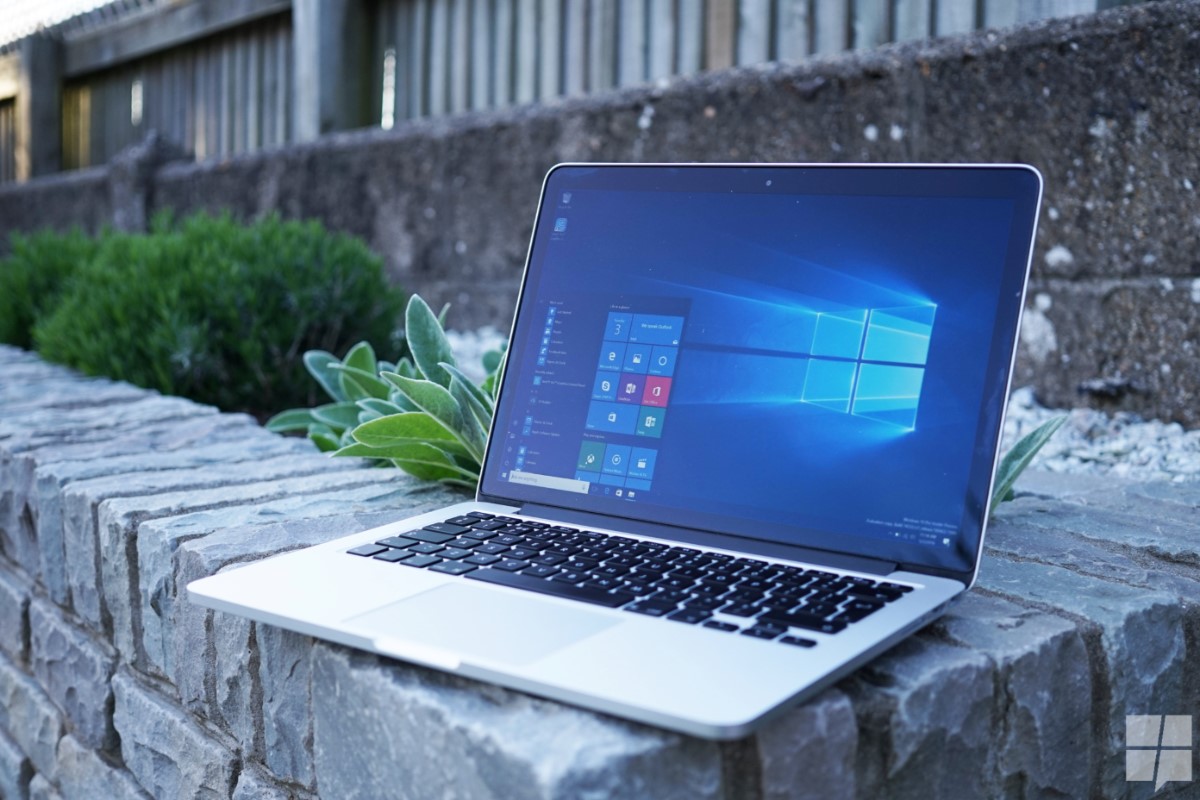
PC security is very useful to each and every one of us, and having an accurate knowledge of our security level can only ever help.
Perhaps we have a nosy nelly in the household, or you’re a secret government security agent, who needs to know that their PC hasn’t been tampered with.
The easiest way to do this is to check if someone’s been logging into your PC like a modern day digital Goldilocks, and Windows 10 provides the security tools to make sure that you can check login attempts on your PC, both successful, and otherwise.
How to view login attempts on your Windows 10 PC
How to turn on logon auditing for Windows 10 Pro.
- Open the Group Policy app by typing gpedit into the Cortana/search box.
- Once in the Group Policy editor, navigate down the following route to get to the logon audit policy: Computer Configuration > Windows Settings > Security Settings > Local Policies > Audit Policy.
- Look for Logon audits, and double-click it.
- This will open a new sub-menu. Select both success and failure, this means that if someone tries and fails to login, Windows will still keep track of the login.
How to view logon attempts on your Windows 10 PC.
- Open the Event Viewer desktop program by typing “Event Viewer” into Cortana/the search box.
- Select Windows Logs from the left-hand menu pane.
- Under Windows Logs, select security.
- You should now see a scro
 lling list of all events related to security on your PC.
 - Look out for Event 4624, that is a typical logon. You can check the time, date, and account details to see who logged in and when, if you suspect it wasn’t you.
P.S: For Windows 10 Home users, you’ll only see successful logins, and as group policy isn’t available for those devices, this isn’t configurable.


Read our disclosure page to find out how can you help MSPoweruser sustain the editorial team Read more



Improve this guide


User forum
0 messages