
Fix Search Engine Keeps Changing To Yahoo In Chrome (Easy Guide)


 5 min. read
  Updated on
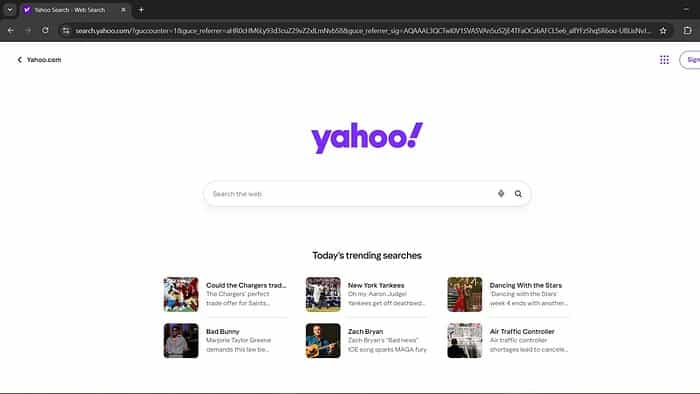
Is your Chrome browser stubbornly redirecting your searches to Yahoo, even though you’ve set Google as your default search engine? This frustrating issue is surprisingly common, and thankfully, there are several straightforward solutions to get your Chrome browser back to using your preferred search engine. This article will guide you through the most effective methods to fix the problem of your search engine constantly changing to Yahoo in Chrome.
We’ll cover everything from checking your Chrome settings and extensions to scanning for malware and resetting your browser. By following these steps, you’ll be able to reclaim control over your search experience and ensure Chrome uses your desired search engine.
Why Does My Search Engine Keep Changing to Yahoo?
Here’s how to troubleshoot and fix this annoying problem:
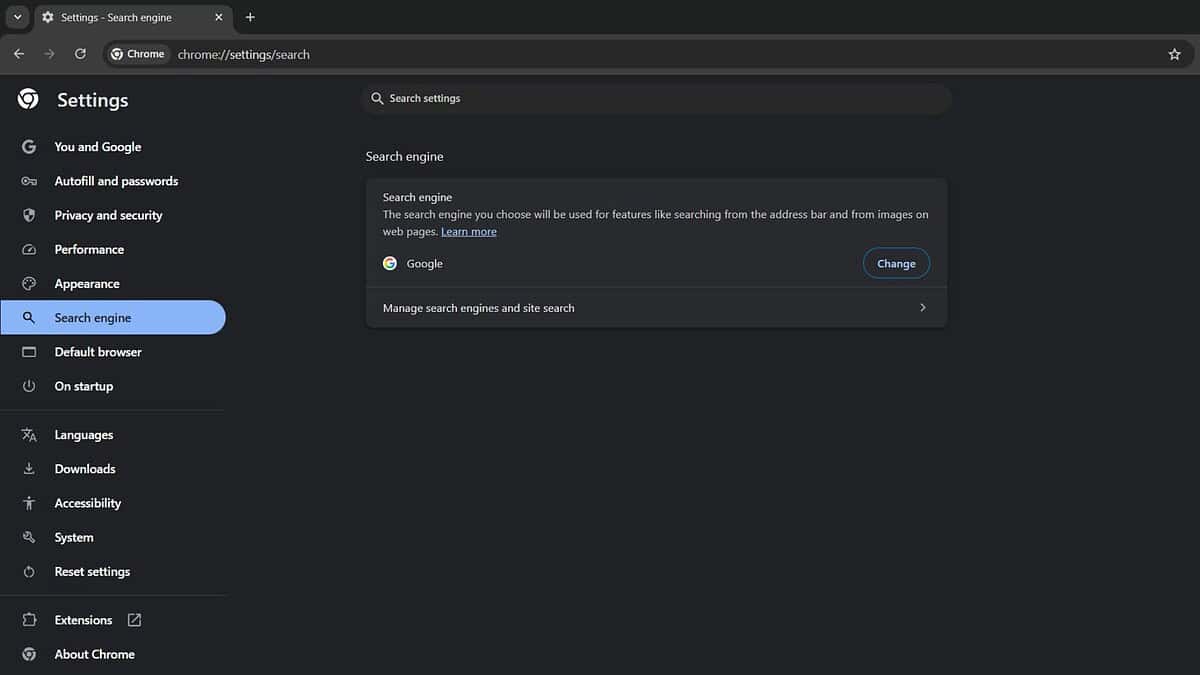
Check Your Chrome Search Engine Settings
The most basic step is to verify that Google is indeed set as your default search engine in Chrome’s settings.
- Click the three dots (menu) in the top-right corner of Chrome.
- Select “Settings.”
- In the left sidebar, click “Search engine.”
- Next to “Search engine used in the address bar,” make sure “Google” is selected.
- If Yahoo (or any other unwanted search engine) is present in the “Other search engines” list, click the three dots next to it and select “Remove from list.”
Examine Your Chrome Extensions
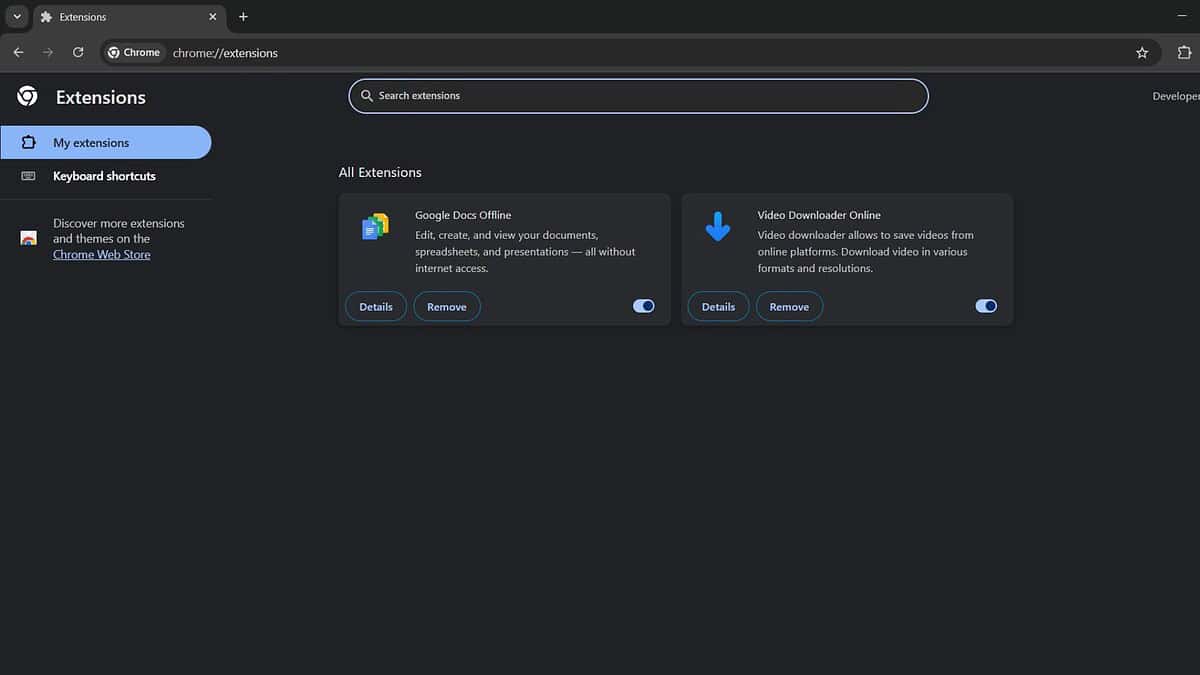
Malicious or poorly designed browser extensions are a frequent culprit behind unwanted search engine changes.
- In Chrome, type
chrome://extensionsin the address bar and press Enter. - Carefully review the list of installed extensions. Look for anything unfamiliar, suspicious, or recently installed.
- Disable any extension you’re unsure about by toggling the switch next to its name to the “off” position.
- If disabling an extension resolves the issue, consider removing it completely by clicking the “Remove” button.
Scan For Malware
Malware can hijack your browser settings and redirect your searches. Run a thorough scan with a reputable antivirus or anti-malware program.
- Download and install a reputable antivirus or anti-malware program (e.g., Malwarebytes, Avast).
- Run a full system scan.
- Follow the program’s instructions to remove any detected threats.
Reset Chrome to Default Settings
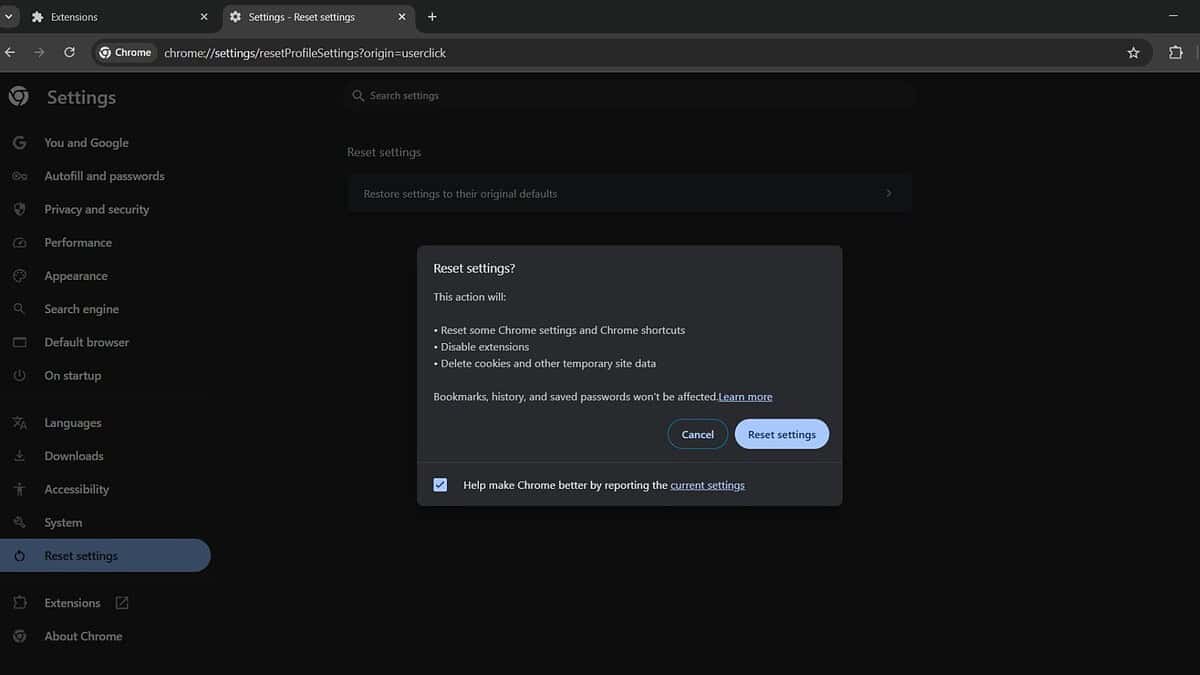
If other methods fail, resetting Chrome to its default settings can often resolve the issue. This will disable extensions, clear temporary data, and reset your search engine to the default.
- Click the three dots (menu) in the top-right corner of Chrome.
- Select “Settings.”
- In the left sidebar, click “Reset and clean up.”
- Click “Restore settings to their original defaults.”
- Click “Reset settings” to confirm.
Check Your System’s Installed Programs
Sometimes, unwanted programs installed on your computer can modify browser settings.
- Open the Control Panel (Windows) or System Preferences (macOS).
- Go to “Programs and Features” (Windows) or “Applications” (macOS).
- Review the list of installed programs for anything unfamiliar or suspicious.
- Uninstall any unwanted programs.
Clean Up Chrome With Chrome’s Built-in Tool
Chrome has a built-in tool to help remove harmful software.
- Click the three dots (menu) in the top-right corner of Chrome.
- Select “Settings.”
- In the left sidebar, click “Reset and clean up.”
- Click “Clean up computer.”
- Click “Find” and follow the instructions to remove any detected harmful software.
Tips For Preventing Future Hijacking
- Be cautious when installing software, especially freeware or shareware.
- Pay close attention to installation prompts and uncheck any boxes that install additional software or change your browser settings.
- Keep your antivirus and anti-malware software up to date.
- Regularly review your browser extensions and remove any that you no longer need.
Comparison of Fix Methods
| Method | Description | Difficulty | Effectiveness |
|---|---|---|---|
| Check Chrome Settings | Verifies that Google is set as the default search engine within Chrome’s settings. | Easy | Medium |
| Examine Chrome Extensions | Identifies and disables or removes potentially malicious or unwanted browser extensions that might be altering search settings. | Medium | High |
| Scan for Malware | Detects and removes malware that could be hijacking browser settings and redirecting searches. | Medium | High |
| Reset Chrome to Default | Resets Chrome to its original settings, disabling extensions, clearing temporary data, and resetting the search engine to default. | Easy | High |
| Check Installed Programs | Identifies and uninstalls unwanted programs installed on the computer that may be modifying browser settings. | Medium | Medium |
| Clean Up Chrome with Tool | Uses Chrome’s built-in tool to find and remove harmful software that may be causing the search engine redirection. | Easy | Medium |
By understanding the strengths of each fix, you can tackle the Yahoo redirection issue more effectively.
Regaining Control of Your Chrome Searches
By systematically working through these steps, you can effectively address the issue of your search engine constantly changing to Yahoo in Chrome and restore your preferred search experience.
FAQ
Why does my search engine keep changing to Yahoo? Malware, unwanted programs, or browser extensions are often the cause of this issue.
How do I remove Yahoo from my Chrome search engine? Go to Chrome settings, search engine, and remove Yahoo from the “Other search engines” list.
Will resetting Chrome delete my bookmarks? No, resetting Chrome will not delete your bookmarks, but it will disable your extensions and clear temporary data.
How do I prevent my search engine from changing again? Be cautious when installing software, keep your antivirus up to date, and regularly review your browser extensions.
What if none of these steps work? If the issue persists, consider seeking assistance from a technical support professional.
Related reading


Read our disclosure page to find out how can you help MSPoweruser sustain the editorial team Read more



Improve this guide




User forum
0 messages