
Download The Latest Windows 10 ISO Disc Image Directly From Microsoft (Quick Guide)


 4 min. read
  Updated on
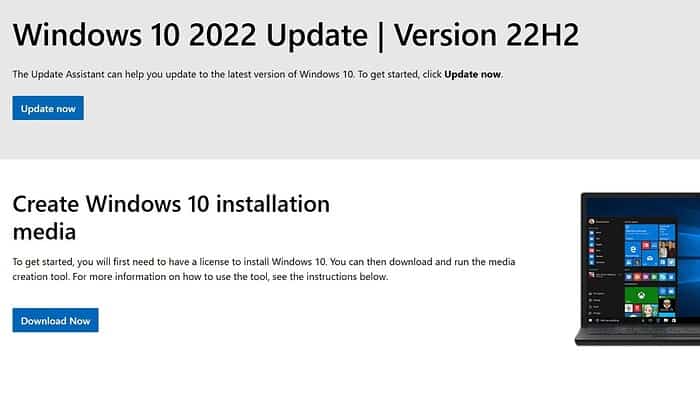
Downloading a Windows 10 ISO file directly from Microsoft is a straightforward process, ensuring you get a clean, legitimate copy of the operating system. This guide provides a step-by-step walkthrough, helping you download the correct version for your needs and avoiding potential pitfalls.
How Can I Download the Windows 10 ISO Directly From Microsoft?
Step 1: Navigate to the Official Microsoft Software Download Website
The first step involves locating the official Microsoft software download page. A simple Google search for "Windows 10 download" will usually suffice, but be cautious of unofficial websites. Directly accessing the official Microsoft page guarantees you are downloading a legitimate and safe ISO file.
Step 2: Select Your Windows 10 Edition
Once on the download page, you’ll be presented with options for various Windows 10 editions. Carefully choose the correct edition that matches your existing license or the one you intend to purchase. Options typically include Home, Pro, Education, and Enterprise. Selecting the wrong edition may lead to compatibility issues or activation problems.
Step 3: Choose Your Language and Architecture
Microsoft offers Windows 10 in numerous languages. Select the language that matches your preference. Next, select the architecture (64-bit or 32-bit). Most modern computers use 64-bit architecture, but check your system specifications if you’re unsure.
Step 4: Download the ISO File
After selecting your edition, language, and architecture, click the download button. The download will begin, and the size of the ISO file will depend on the edition and language selected. Depending on your internet connection speed, this process may take some time.
Step 5: Verify the Download
After the download is complete, it’s crucial to verify the integrity of the downloaded file. This can be done by checking the file size against the expected size listed on the Microsoft website. You can also use a checksum utility to compare the file’s hash value with the one provided by Microsoft to ensure it hasn’t been tampered with.
Tips for a Smooth Download
- Stable Internet Connection: A stable and fast internet connection is crucial for a successful download. Avoid starting the download during peak internet usage times.
- Sufficient Storage Space: Ensure you have enough free space on your hard drive to accommodate the ISO file. The file size can vary depending on the edition but typically ranges from 4GB to 6GB.
- Check Your System Requirements: Before starting the download, verify that your computer meets the minimum system requirements for Windows 10.
Wrapping Up Windows 10 ISO Download
Downloading the Windows 10 ISO directly from Microsoft ensures you obtain a genuine copy of the operating system, free from malware or unwanted modifications. By following the steps outlined above and taking the necessary precautions, you can successfully download and install Windows 10 on your computer.
FAQs
What is a Windows 10 ISO file?
A Windows 10 ISO file is a disk image file that contains the complete installation files for Windows 10. It’s essentially a digital representation of a Windows 10 installation DVD or USB drive.
How do I create a bootable USB drive from a Windows 10 ISO file?
You can use the Media Creation Tool provided by Microsoft to create a bootable USB drive from the downloaded ISO file. This tool guides you through the process, making it easy to create a bootable USB installer.
Where can I find the system requirements for Windows 10?
You can find the system requirements for Windows 10 on the official Microsoft website. These requirements outline the minimum hardware specifications needed to run Windows 10 smoothly.
What should I do if I encounter issues downloading the ISO file?
If you encounter issues, check your internet connection, ensure you have sufficient storage space, and try again. If the problem persists, consult Microsoft’s support resources or community forums for assistance.
Related reading
- How To Download And Install A Free Office Suite On Windows 11 (Quick Guide)
- How To Download Razer Synapse For Windows PC (Quick Guide)
- HP Smart App For Windows: Download, Install, Use, And Uninstall (A Quick Guide)
- How to use Microsoft’s Quick Assist app to get help on Windows 10
- How to Download and Use CapCut AI Video Editor on Windows PC [Full Guide]


Read our disclosure page to find out how can you help MSPoweruser sustain the editorial team Read more



Improve this guide




User forum
0 messages