
Download And Install WiFi Adapter Drivers For Windows 11/10


 5 min. read
  Updated on
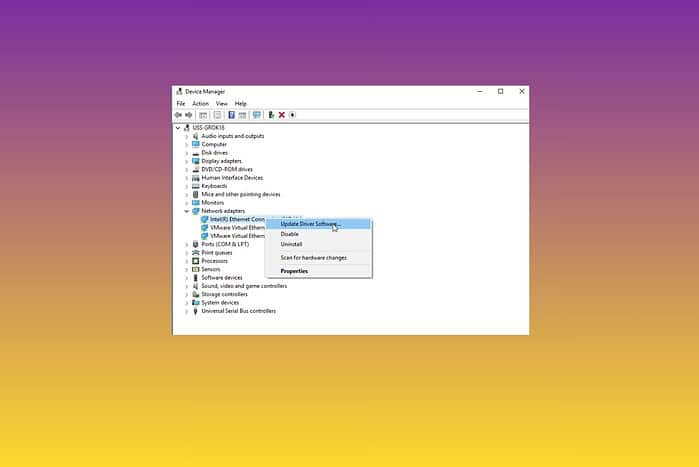
If you want to make sure your Wi-Fi adapter has the correct driver, follow this step by step installation guide. A stable and reliable internet connection requires proper configuration of these drivers.
Outdated or corrupted drivers can lead to dropped connections, slow speeds, or even complete WiFi failure. Fortunately, downloading and installing the latest drivers is usually a straightforward process.
Table of contents
How Do I Download and Install WiFi Adapter Drivers?
Automatic Driver Update via Windows Update
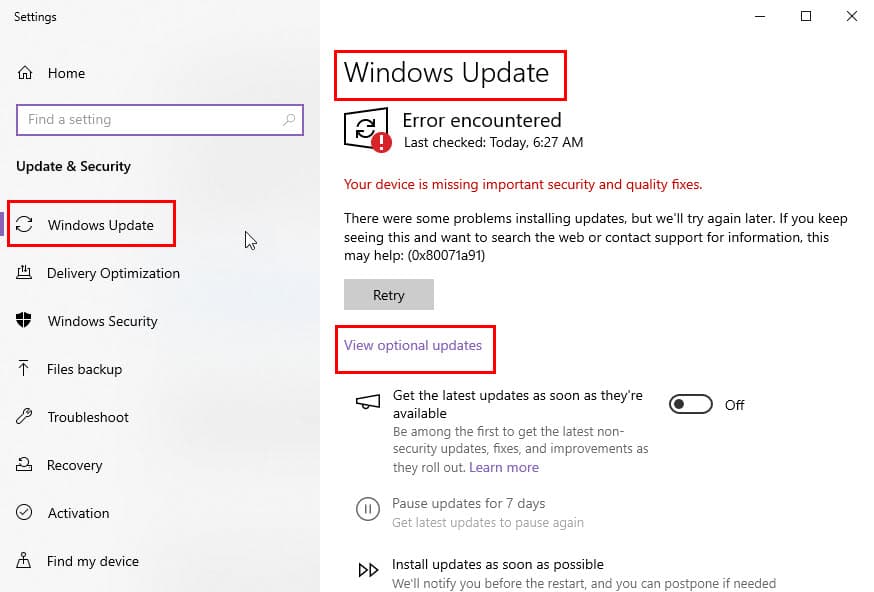
Windows Update is the easiest way to get the latest drivers for your WiFi adapter. It automatically detects and installs compatible drivers. If you’re using a gaming laptop, this also helps maintain good power balance and performance — especially on gaming laptops with long battery life.
- Click the Start button and type “Settings”.
- Click on Settings app.
- Click on Windows Update.
- Click the Check for updates button.
- If updates are found, Windows will automatically download and install them, including driver updates for your WiFi adapter.
- Restart your computer after the updates are installed.
Using Device Manager to Update Drivers
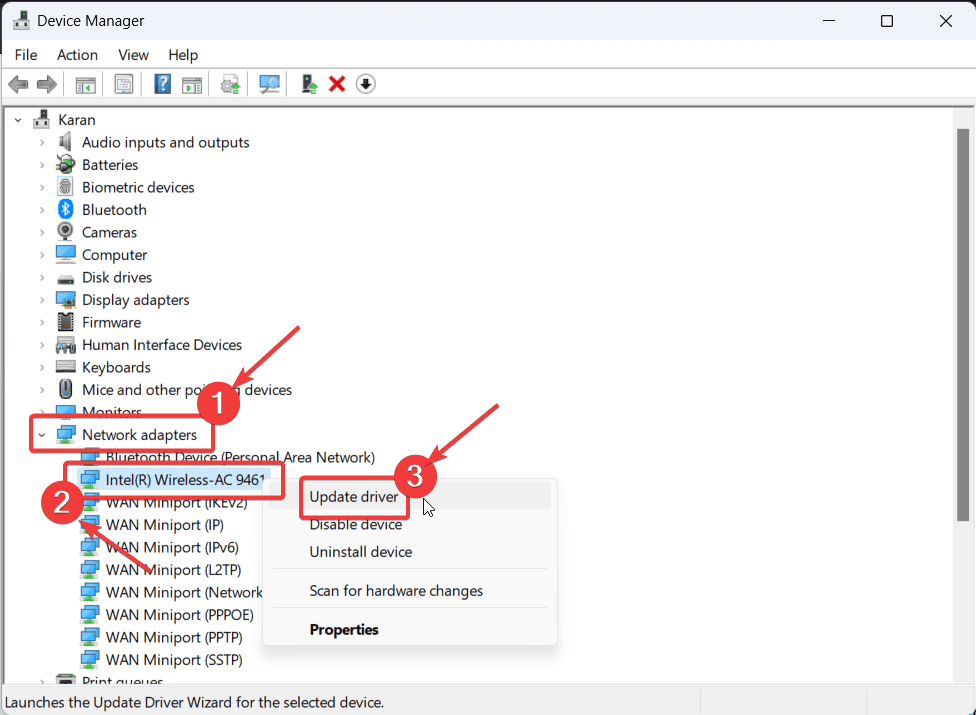
Device Manager allows you to manually update the driver for your WiFi adapter. This method also works well for other devices like printers — for example, you can install Canon LBP2900B printer drivers through a similar manual update process.
- Right-click the Start button and select Device Manager.
- Expand the Network adapters category.
- Right-click on your WiFi adapter (e.g., “Intel(R) Wireless-AC 9560”).
- Select Update driver.
- Choose Search automatically for drivers. Windows will search your computer and the internet for the latest driver software.
- If a new driver is found, Windows will install it. If not, you’ll see a message saying “The best drivers for your device are already installed”.
- Restart your computer.
Manually Downloading Drivers from the Manufacturer’s Website
If Windows Update or Device Manager doesn’t find the latest driver, you can download it directly from the manufacturer’s website. This process works for WiFi adapters as well as other peripherals like tablets and accessories — such as Samsung Galaxy Tab S9+ cases and covers that may need companion apps or drivers for optimal function.
- Identify your WiFi adapter’s manufacturer and model number. This information is usually printed on the adapter itself or in the Device Manager (under Network adapters, right-click the adapter, select Properties, and go to the Details tab).
- Visit the manufacturer’s website. Common manufacturers include Intel, TP-Link, ASUS, and Netgear.
- Navigate to the support or downloads section of the website.
- Search for drivers using your WiFi adapter’s model number.
- Download the latest driver for your version of Windows (Windows 11 or Windows 10, 32-bit or 64-bit).
- Extract the downloaded file if it’s in a ZIP or other compressed format.
- Return to Device Manager (right-click Start button, select Device Manager).
- Expand Network adapters.
- Right-click on your WiFi adapter and select Update driver.
- Choose Browse my computer for drivers.
- Click Browse and navigate to the folder where you extracted the driver files.
- Make sure the Include subfolders box is checked.
- Click Next. Windows will install the driver.
- Restart your computer.
Rolling Back to a Previous Driver Version
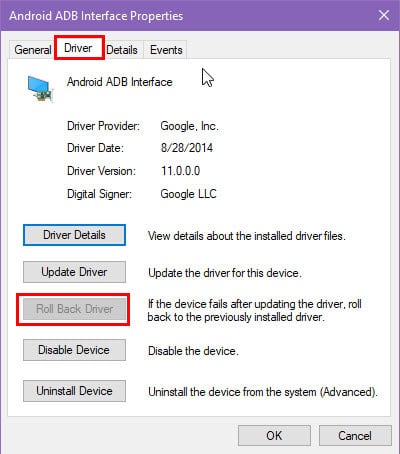
If a driver update causes problems, you can roll back to a previous version. This option is also useful if you notice performance drops in specific apps — for instance, after updating apps like TikTok or TikTok Lite that rely on stable network connectivity.
- Open Device Manager (right-click Start button, select Device Manager).
- Expand Network adapters.
- Right-click on your WiFi adapter and select Properties.
- Go to the Driver tab.
- Click the Roll Back Driver button (if it’s available).
- Follow the on-screen instructions.
- Restart your computer.
Common WiFi Adapter Manufacturers and Their Websites
Here’s a quick reference for popular WiFi adapter manufacturers and their driver download pages. Some of these pages also include firmware tools for other devices, including IR universal remote apps that connect via WiFi adapters.
Tips
- Always download drivers from the manufacturer’s official website to avoid malware.
- Create a system restore point before installing new drivers, so you can easily revert if something goes wrong.
- If you’re experiencing persistent WiFi issues, consider checking your router’s firmware and settings as well.
Resolving WiFi Connectivity
Keeping your WiFi adapter drivers up-to-date is a crucial step in maintaining a stable and efficient wireless connection on your Windows 11/10 system. By following the methods outlined above, you can ensure your system is always running with the best possible drivers.
FAQ
How do I know if my WiFi adapter driver is outdated?
You might experience slow internet speeds, frequent disconnections, or error messages related to your network adapter. You can also check the driver date in Device Manager.
Where can I find the latest WiFi adapter drivers?
You can find the latest drivers on the manufacturer’s website or through Windows Update.
What should I do if a driver update causes problems?
You can roll back to a previous driver version using Device Manager.
How often should I update my WiFi adapter drivers?
It’s a good practice to check for driver updates periodically, especially if you’re experiencing network issues.
What if I can’t find the driver for my WiFi adapter on the manufacturer’s website?
Contact the manufacturer’s support team for assistance. They ma


Read our disclosure page to find out how can you help MSPoweruser sustain the editorial team Read more



Improve this guide




User forum
0 messages