
Best Dual Monitor Software In 2025


 6 min. read
  Updated on

Let’s highlight five of the best apps available, each offering unique features to optimize your workflow and make the most of your dual-screen setup.
What’s the Best Dual Monitor Software to Use?
DisplayFusion

DisplayFusion is a robust and highly customizable dual monitor software that gives you extensive control over your multi-monitor setup. It offers features such as multi-monitor taskbars, advanced window management, and customizable hotkeys. With DisplayFusion, you can tailor your dual monitor experience to perfectly suit your workflow.
DisplayFusion helps users by allowing them to mirror windows to one monitor to another, extend application across both monitors, and customize each monitor’s display settings. This level of customization can significantly improve productivity and reduce the time spent managing windows.
Key Features:
- Multi-Monitor Taskbars: Add a taskbar to each monitor, allowing you to easily manage windows on each screen.
- Advanced Window Management: Snap windows to the edges of monitors, tile windows, and move windows between monitors with ease.
- Customizable Hotkeys: Create custom hotkeys for various functions, such as moving windows, maximizing windows, and more.
- Monitor Configuration: Adjust resolution, orientation, and refresh rate for each monitor.
Pricing: Free (limited features), Pro version: $29
Ultramon
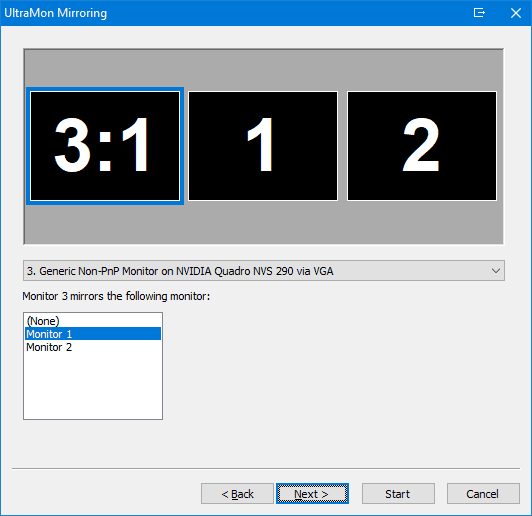
UltraMon is another popular dual monitor software that offers a range of features to enhance your multi-monitor experience. It provides intelligent window management, application spanning, and monitor profiles. UltraMon focuses on simplicity and ease of use, making it a great choice for both beginners and advanced users.
UltraMon simplifies the management of multiple monitors by providing a unified interface for controlling window positions, display settings, and application behavior. Users can quickly move applications between monitors, extend applications across multiple screens, and save monitor profiles for different tasks.
Key Features:
- Smart Taskbar: Extends the Windows taskbar to all monitors, showing only the applications running on each monitor.
- Window Mirroring: Mirror the content of one monitor to another, useful for presentations or collaboration.
- Monitor Profiles: Save and load monitor configurations for different tasks or environments.
- Application Spanning: Span applications across multiple monitors for a seamless experience.
Pricing: Single license: $39.95
Actual Multiple Monitors

Actual Multiple Monitors is a comprehensive dual monitor software that provides a wide range of tools for managing your multi-monitor setup. It offers features such as taskbar extensions, window management enhancements, and desktop mirroring. Actual Multiple Monitors aims to provide a complete solution for maximizing productivity with multiple displays.
Actual Multiple Monitors is designed to enhance the functionality of Windows by adding features that are specifically tailored for multi-monitor setups. Users can create individual taskbars for each monitor, customize the start menu, and extend the functionality of the Windows Explorer.
Key Features:
- Taskbar Extensions: Add a taskbar to each monitor, complete with a start button and system tray.
- Window Management: Easily move, resize, and position windows across multiple monitors.
- Desktop Mirroring: Mirror the content of one monitor to another, with customizable settings.
- Individual Monitor Settings: Configure display settings for each monitor independently.
Pricing: Personal license: $49.95
MultiMonitorTool

MultiMonitorTool is a lightweight and portable utility that provides a range of features for managing multiple monitors. It allows you to disable/enable monitors, move windows between monitors, and save/load monitor configurations. MultiMonitorTool is a great choice for users who need a simple and effective solution without the bloat of larger software packages.
MultiMonitorTool allows you to quickly disable or enable monitors, move windows between monitors, and save and load monitor configurations. This tool is particularly useful for users who frequently switch between different monitor setups or need to troubleshoot display issues.
Key Features:
- Disable/Enable Monitors: Easily turn monitors on or off with a single click.
- Move Windows: Move windows between monitors using hotkeys or the context menu.
- Save/Load Configurations: Save and load monitor configurations for different scenarios.
- Command-Line Support: Automate monitor management tasks using command-line options.
Pricing: Free
MurGeeMon

MurGeeMon is a straightforward and user-friendly dual monitor software that focuses on providing essential features for managing multiple displays. It offers features such as monitor identification, window snapping, and customizable hotkeys. MurGeeMon is a great choice for users who want a simple and effective solution without a lot of bells and whistles.
MurGeeMon focuses on providing the core features needed to manage multiple monitors efficiently. Users can quickly identify monitors, snap windows to the edges of the screen, and customize hotkeys for common tasks. This software is designed to be intuitive and easy to use, making it accessible to users of all skill levels.
Key Features:
- Monitor Identification: Easily identify each monitor with a unique number or label.
- Window Snapping: Snap windows to the edges of the screen for easy organization.
- Customizable Hotkeys: Create custom hotkeys for various functions, such as moving windows and maximizing windows.
- Taskbar Extension: Add a taskbar to each monitor for easy window management.
Pricing: Free trial, Full version: $9
Comparing Dual Monitor Software Features and Prices
| Feature | DisplayFusion | UltraMon | Actual Multiple Monitors | MultiMonitorTool | MurGeeMon |
|---|---|---|---|---|---|
| Multi-Monitor Taskbar | Yes | Yes | Yes | No | Yes |
| Window Management | Yes | Yes | Yes | Yes | Yes |
| Hotkeys | Yes | Yes | Yes | Yes | Yes |
| Monitor Profiles | Yes | Yes | Yes | Yes | No |
| Desktop Mirroring | Yes | Yes | Yes | No | No |
| Price | $29 | $39.95 | $49.95 | Free | $9 |
Tips
- Consider Your Needs: Determine which features are most important to you before choosing a dual monitor software. If you struggle to weigh multiple options, frameworks like those discussed in Top Decision Tree Software For Smarter Choices can help you rank your priorities.
- Try Before You Buy: Many of these apps offer free trials or limited free versions, so you can test them out before committing to a purchase.
- Customize Your Setup: Take the time to customize your settings and hotkeys to optimize your workflow. Power users who also rely on virtual machines should ensure their system supports features like VT-x/AMD-V by following steps similar to those in How To Turn On Hardware Virtualization In Windows 11.
Maximize Your Dual Display Setup
Choosing the right dual monitor software can significantly enhance your productivity and overall experience. By exploring the features and benefits of each app, you can find the perfect solution to optimize your dual-screen setup and streamline your workflow, whether you manage virtual machines, edit audio, or just keep dozens of browser tabs open.
FAQ
What is dual monitor software?
Dual monitor software enhances the functionality of a multi-monitor setup by providing features like extended taskbars, window management tools, and customizable hotkeys.
Is dual monitor software necessary?
While not strictly necessary, dual monitor software can significantly improve productivity and workflow by making it easier to manage multiple windows and applications across multiple screens.
Are there any free dual monitor software options?
Yes, MultiMonitorTool is a completely free option, and DisplayFusion offers a free version with limited features.
Which dual monitor software is best for gaming?
DisplayFusion and UltraMon are popular choices for gaming due to their advanced window management and customization options. When you finish a long gaming or work session and your system feels sluggish, a quick reboot following steps like those in How To Restart Your Android Phone (adapted for Windows) often helps clear things up.


Read our disclosure page to find out how can you help MSPoweruser sustain the editorial team Read more



Improve this guide




User forum
0 messages