
6 Ways To Find The Name Of Computer On Windows 11 And 10


 4 min. read
  Updated on
If you’ve ever tried to connect your PC to another device or a shared network, you’ve probably been asked for your computer’s name.
It’s an important identifier that makes managing and troubleshooting your system easier. This guide covers six straightforward methods to find your computer’s name on both Windows 11 and Windows 10.
How Do I Find My Computer Name on Windows?
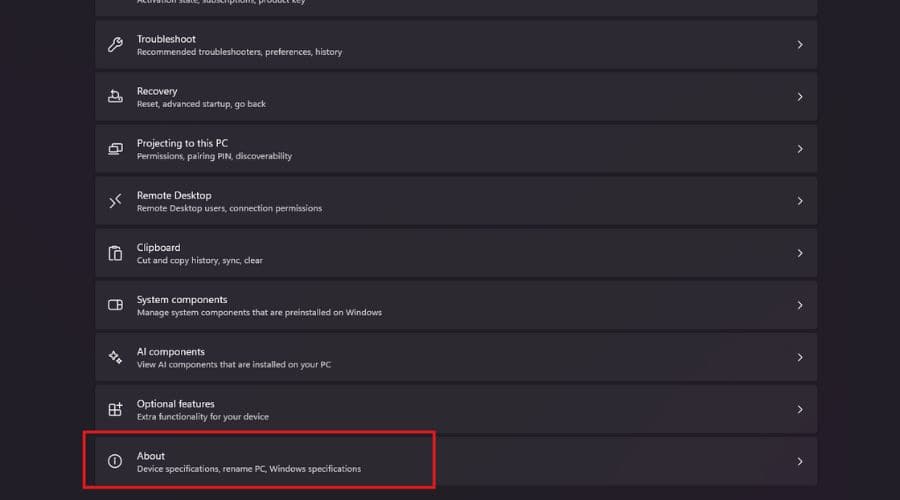
Using System Settings
System Settings is the most straightforward way to find your computer’s name. This method works identically on both Windows 11 and Windows 10.
- Open the Settings app. You can do this by pressing the Windows key + I.
- Click on System.
- Scroll down and click on About.

- Look for the Device name field. This is your computer’s name.
Using the Control Panel
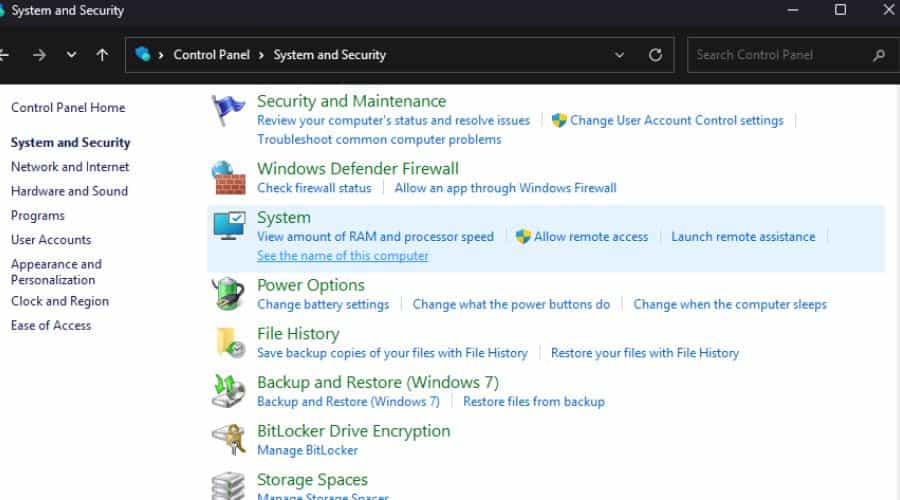
The Control Panel offers another easy way to find your computer’s name, especially for those familiar with older Windows versions.
- Open the Control Panel. You can search for it in the Start menu.
- Click on System and Security.
- Click on System.
- Under the Computer name, domain, and workgroup settings section, you’ll find the Computer name.
Using Command Prompt
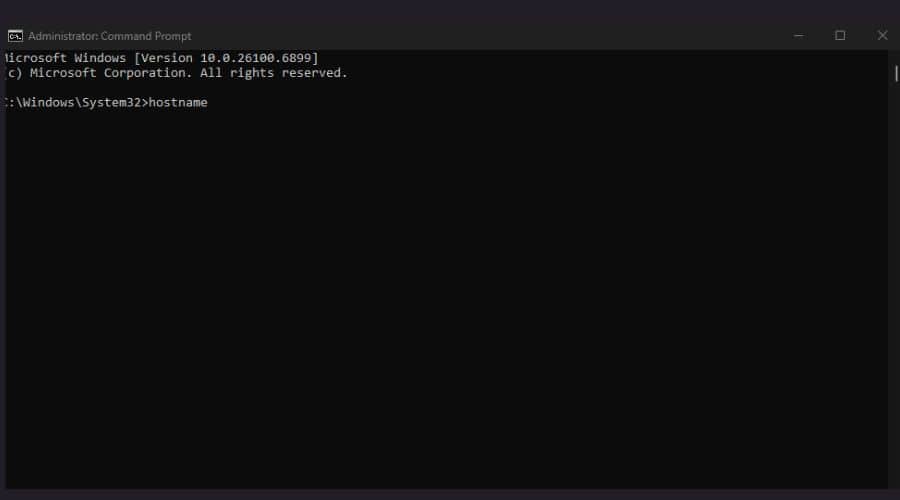
For users comfortable with command-line interfaces, the Command Prompt provides a quick way to retrieve the computer’s name.
- Open Command Prompt. You can search for it in the Start menu.
- Type `hostname` and press Enter.
- The computer’s name will be displayed on the next line.
Using PowerShell
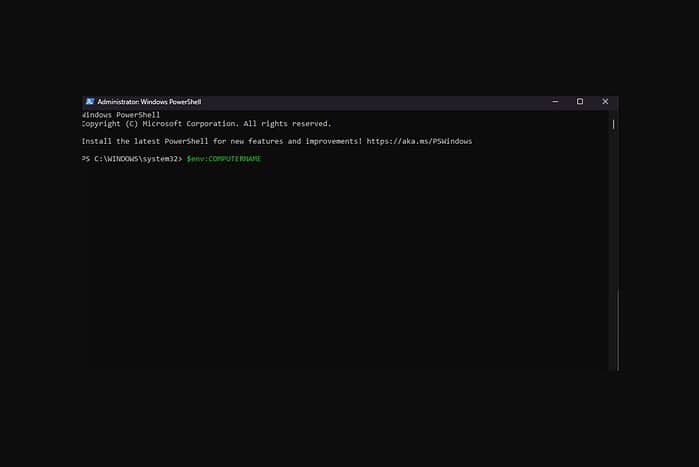
PowerShell is a more advanced command-line tool that also allows you to find the computer’s name.
- Open PowerShell. You can search for it in the Start menu.
- Type `$env:COMPUTERNAME` and press Enter.
- The computer’s name will be displayed on the next line.
Using the Run Dialog Box
The Run dialog box offers a quick shortcut to access system information, including your computer’s name.
- Press the Windows key + R to open the Run dialog box.
- Type `cmd` and press Enter to open Command Prompt.
- Type `hostname` and press Enter.
- The computer’s name will be displayed.
Checking Network Settings
Your computer’s name is also visible within network settings, especially useful when troubleshooting network-related issues.
- Open the Settings app (Windows key + I).
- Click on Network & internet.
- Click on Ethernet or Wi-Fi, depending on your connection type.
- Click on your network connection.
- Scroll down to see the Link-local IPv6 address. Your computer’s name might be displayed near this information.
Tips
- Make sure your computer is connected to the internet when using network-related methods, as it can sometimes affect the displayed information.
- If you change your computer’s name, you may need to restart your computer for the changes to take effect fully.
- Consider writing down your computer’s name in a safe place for future reference, especially if you manage multiple devices.
Let’s compare some methods side by side:
| Method | Ease of Use | Speed | Requires Admin Rights |
|---|---|---|---|
| System Settings | Very Easy | Fast | No |
| Control Panel | Easy | Fast | No |
| Command Prompt | Moderate | Fast | No |
| PowerShell | Moderate | Fast | No |
| Run Dialog | Easy | Fast | No |
| Network Settings | Moderate | Moderate | No |
Identifying Your Computer’s Name Made Easy
Finding your computer’s name in Windows 11 and 10 doesn’t have to be complicated. By using one of the methods above, you can quickly identify your computer’s name, whether you’re a beginner or an advanced user.
FAQ
How do I change my computer’s name in Windows 11?
You can change your computer’s name by going to Settings > System > About, then clicking “Rename this PC.”
Will changing my computer’s name affect my files?
No, changing your computer’s name will not affect your files or installed programs.
Why do I need to know my computer’s name?
Knowing your computer’s name is essential for network identification, remote access, and troubleshooting purposes.
Is it safe to share my computer’s name?
Sharing your computer’s name is generally safe, as it’s primarily used for identification purposes within a network.
Can I use the same computer name for multiple devices?
It’s not recommended to use the same computer name for multiple devices on the same network, as it can cause conflicts and identification issues.


Read our disclosure page to find out how can you help MSPoweruser sustain the editorial team Read more



Improve this guide




User forum
0 messages