
4 Ways To Rotate Screen In Windows 11 (Quick Guide)


 5 min. read
  Updated on
Rotating your screen in Windows 11 is easy and can make your setup more comfortable, whether you’re watching a movie, reading documents, or using a tablet. Follow the guidenline below to learn how to do it in no time.
If your display turns black or freezes during rotation, check how to fix a black screen of death in Windows 11 for a quick fix. Let’s look at four simple ways to rotate your screen.
Table of contents
How Can I Rotate My Screen in Windows 11?
Here are four straightforward ways to rotate your screen in Windows 11:
Method 1: Using the Keyboard Shortcut
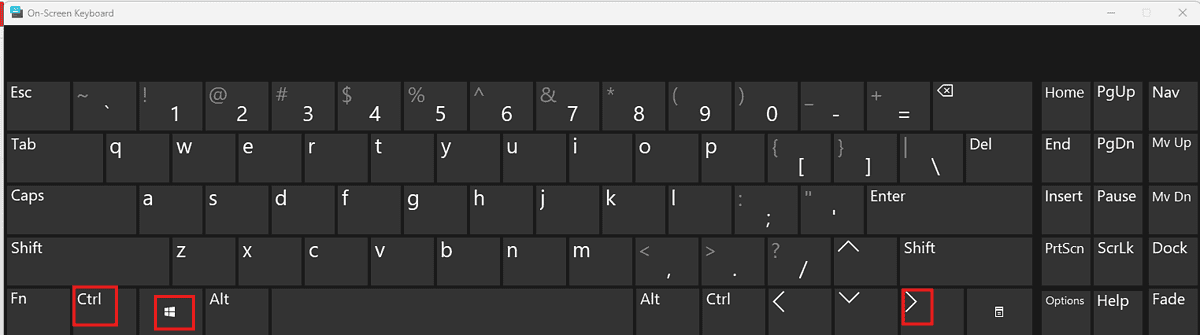
The quickest method is using a simple keyboard shortcut. Press the Windows key + Ctrl + Right arrow to rotate your screen 90 degrees clockwise. To rotate counter-clockwise, use Windows key + Ctrl + Left arrow. This is ideal for quick, temporary rotations. You can also combine this with display tweaks from tools like DirectX Diagnostic Tool if your screen doesn’t respond as expected.
Method 2: Using the Settings App

For more control and to make the rotation permanent, navigate through the settings app:
- Open the Settings app (Windows key + I).
- Click on System.
- Select Display.
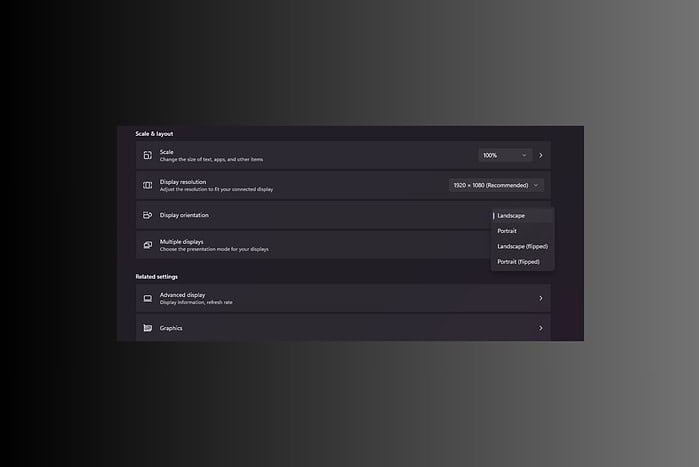
- Under “Scale and layout,” you’ll find the “Display orientation” option.
- Choose your desired orientation from the dropdown menu: Landscape, Portrait, Landscape (flipped), or Portrait (flipped).
This method allows you to select your preferred orientation and save it for future sessions. If you’re personalizing your desktop, you might also want to explore the best free screensavers for Windows 11 to complement your new screen setup.
Method 3: Using the Action Center
If you prefer a quick visual approach, the Action Center offers a convenient solution:
- Click the notification icon in the system tray (bottom-right corner of your screen).
- Locate the brightness slider and click the small upward-pointing arrow next to it.
- You’ll see a series of quick action toggles. If you have a toggle for screen rotation, click it to cycle through the available orientations. (Note: This option may not be available on all devices).
The Action Center is also a great place to manage network settings and device toggles. If you need to adjust your connection after rotating, you can refer to how to open network connections in Windows 11 to ensure everything stays connected properly.
Method 4: Using the Graphics Driver Control Panel (For Advanced Users)
For users with advanced graphics cards (Nvidia, AMD, Intel), your graphics driver might offer more sophisticated screen rotation options. Access your graphics card’s control panel (usually through the system tray) and look for display settings or rotation options within its interface. This is a more advanced method and the specific steps will vary depending on your graphics card and driver version. You can also verify display rendering performance with DirectX Diagnostic Tool if issues persist after rotation.
Tips for Screen Rotation
- Check your display settings: If rotation isn’t working, ensure your display settings are correctly configured for your monitor or screen.
- Restart your computer: A simple restart can often resolve minor display glitches related to screen rotation.
- Update your graphics drivers: Outdated drivers can sometimes cause display issues. Check for updates from your graphics card manufacturer’s website.
When troubleshooting or experimenting with screen layouts, it’s also useful to note your system’s product key. You can find it easily by following these quick methods to locate your Windows product key before making larger display changes or reinstalls.
Wrapping Up Screen Rotation in Windows 11
Rotating your screen in Windows 11 is a straightforward process with multiple methods catering to different preferences and situations. Whether you opt for the keyboard shortcut, the settings app, or other methods, you’ll find a way to easily adjust your screen orientation to suit your needs.
FAQs
How do I rotate my screen back to normal?
Simply use the same method you used to rotate your screen initially, but select the “Landscape” orientation. For the keyboard shortcut, use the appropriate arrow key combination to return to the original orientation.
Why is my screen rotated even after I changed the settings?
This could be due to a driver issue, a problem with the display settings, or a temporary software glitch. Try restarting your computer, updating your graphics drivers, or checking your display settings again. If the problem persists, you may need to seek further technical assistance.
My screen is rotated, and I can’t see anything!
If your screen is rotated and you can’t see the settings menu, you can try using a different method to rotate it back to the normal orientation. If you have an external keyboard, you might be able to use the keyboard shortcut to rotate the screen, even if you can’t see the screen fully. If all else fails, you might need to temporarily connect an external monitor to your computer to access the settings.
Can I automatically rotate my screen based on the device’s position?
Windows 11 doesn’t have a built-in feature for automatic screen rotation based on device position like some tablets or mobile devices. However, some third-party apps might offer this functionality. You’ll need to research and download such an app from a trusted source.


Read our disclosure page to find out how can you help MSPoweruser sustain the editorial team Read more



Improve this guide




User forum
0 messages